Detailed guide

Project Time Entries

The project-scoped time ledger for reviewing all logged effort on one project in one place.

Project Time Entries isolates time activity for one project so you can validate delivery effort without unrelated workspace noise.

Quick summary

  • Review project-specific effort before approving invoices or discussing margin health.
  • Use filters to isolate one contributor or time period before making corrections.
  • Trace unusual effort spikes by comparing rows instead of relying on totals alone.

Put it into practice

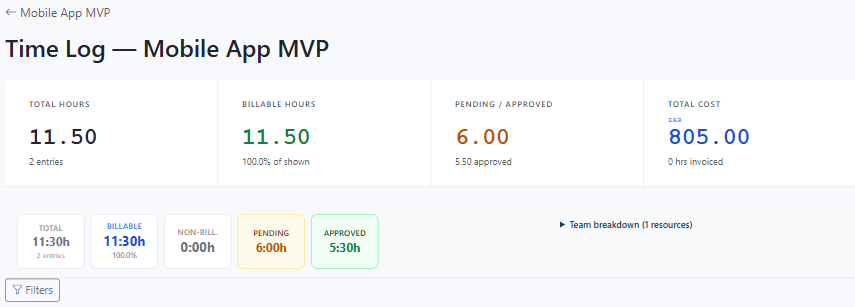
  1. Start from the project context so you do not adjust time on the wrong engagement. Open the project's Time Log and confirm the page header shows the expected project name before making any changes.

    InteractionsProject Detail: Open the project's 'Full Log' link next to '+ Log Time'. Projects List: Scroll to the right and click the 'Full Log' link
    Start from the project context so you do not adjust time on the wrong engagement. Open the project's Time Log and confirm the page header shows the expected project name before making any changes.
  2. Set filters first when the project has many entries. Narrow by date range, billable state, and resource (if you can manage team time) so the table reflects the exact slice you are validating.

    InteractionsProject Time Log: open Filters, set From/To dates, Billable, and Resource, then let the form auto-apply.
    Set filters first when the project has many entries. Narrow by date range, billable state, and resource (if you can manage team time) so the table reflects the exact slice you are validating.
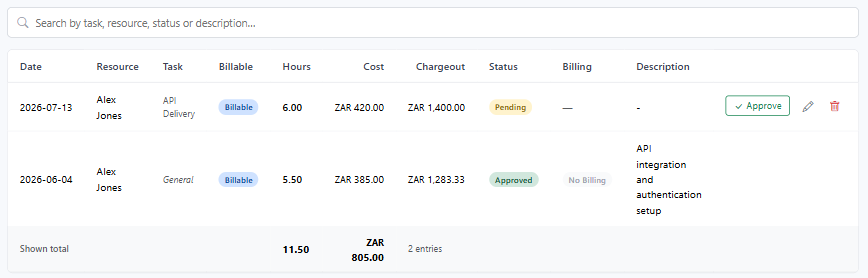
  3. Use the table search box to isolate a task, person, or note fragment before editing. This reduces accidental edits caused by scanning similar rows.

    InteractionsProject Time Log: in the search field above the table, type task, resource, or notes text to narrow visible rows.
    Use the table search box to isolate a task, person, or note fragment before editing. This reduces accidental edits caused by scanning similar rows.
  4. Read status and financial context together before changing hours. Compare pending, approved, and invoiced rows with the cards at the top so corrections do not hide the underlying workflow issue.

    InteractionsProject Time Log: review status badges in each row and the summary cards at the top of the page.
    Read status and financial context together before changing hours. Compare pending, approved, and invoiced rows with the cards at the top so corrections do not hide the underlying workflow issue.
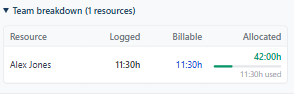
  5. Expand Team breakdown to validate who logged the hours and whether each contributor's billable and allocated profile makes sense before you edit anything.

    InteractionsProject Time Log: click Team breakdown to expand the resource table and review Logged, Billable, and Allocated columns.
    Expand Team breakdown to validate who logged the hours and whether each contributor's billable and allocated profile makes sense before you edit anything.
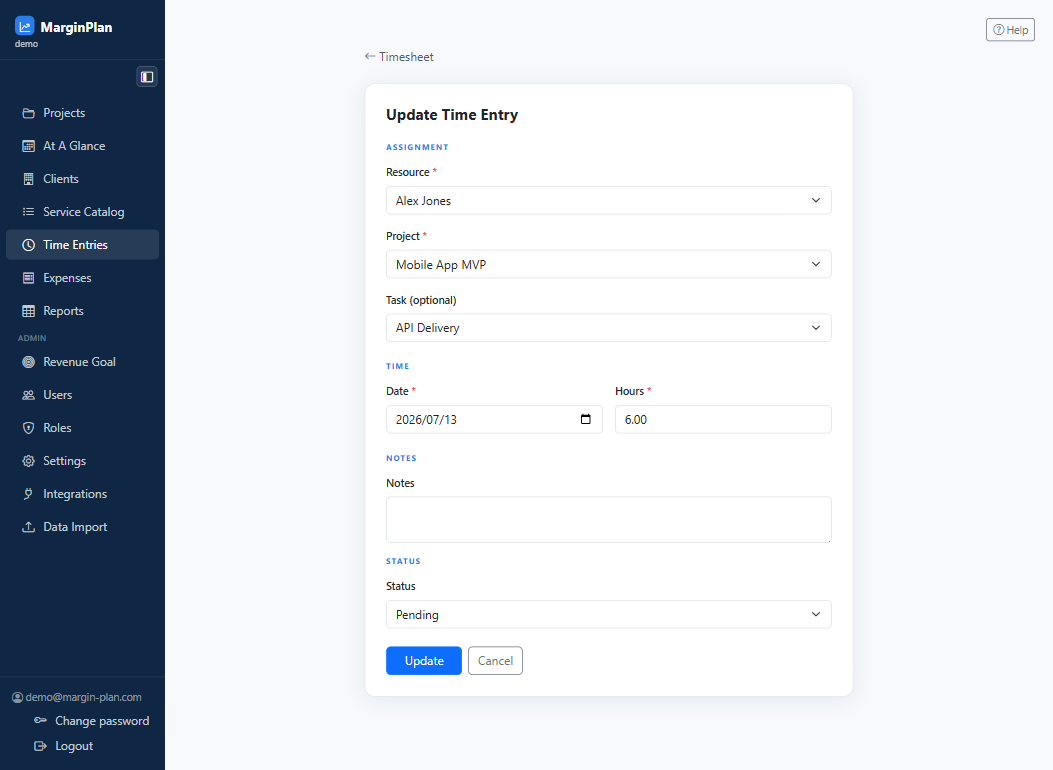
  6. Correct only the rows that are objectively wrong (project task, date, hours, or notes). Keep edits minimal and specific so approval and invoice history remains explainable.

    InteractionsProject Time Log: use the row action controls to edit or delete the incorrect entry.
    Correct only the rows that are objectively wrong (project task, date, hours, or notes). Keep edits minimal and specific so approval and invoice history remains explainable.
    Open workflow: Time Entry Form
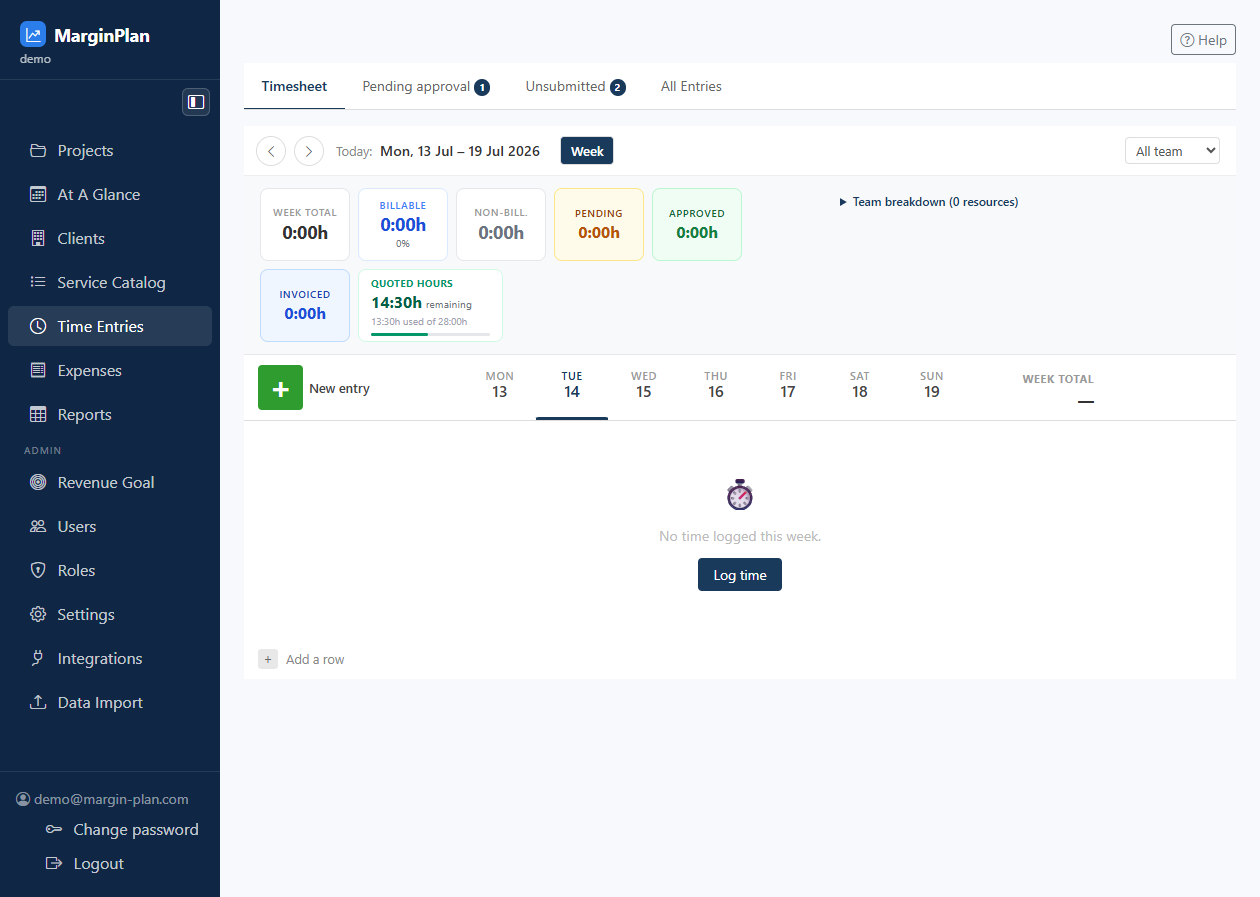
  7. If the issue is widespread, switch to the weekly Timesheet view for faster row-level repair, then return to this project log to validate the result in project scope.

    InteractionsProject Time Log: move to Time Entries > Timesheet to perform bulk weekly corrections, then re-open this project page.
    If the issue is widespread, switch to the weekly Timesheet view for faster row-level repair, then return to this project log to validate the result in project scope.
    Open workflow: Timesheet View
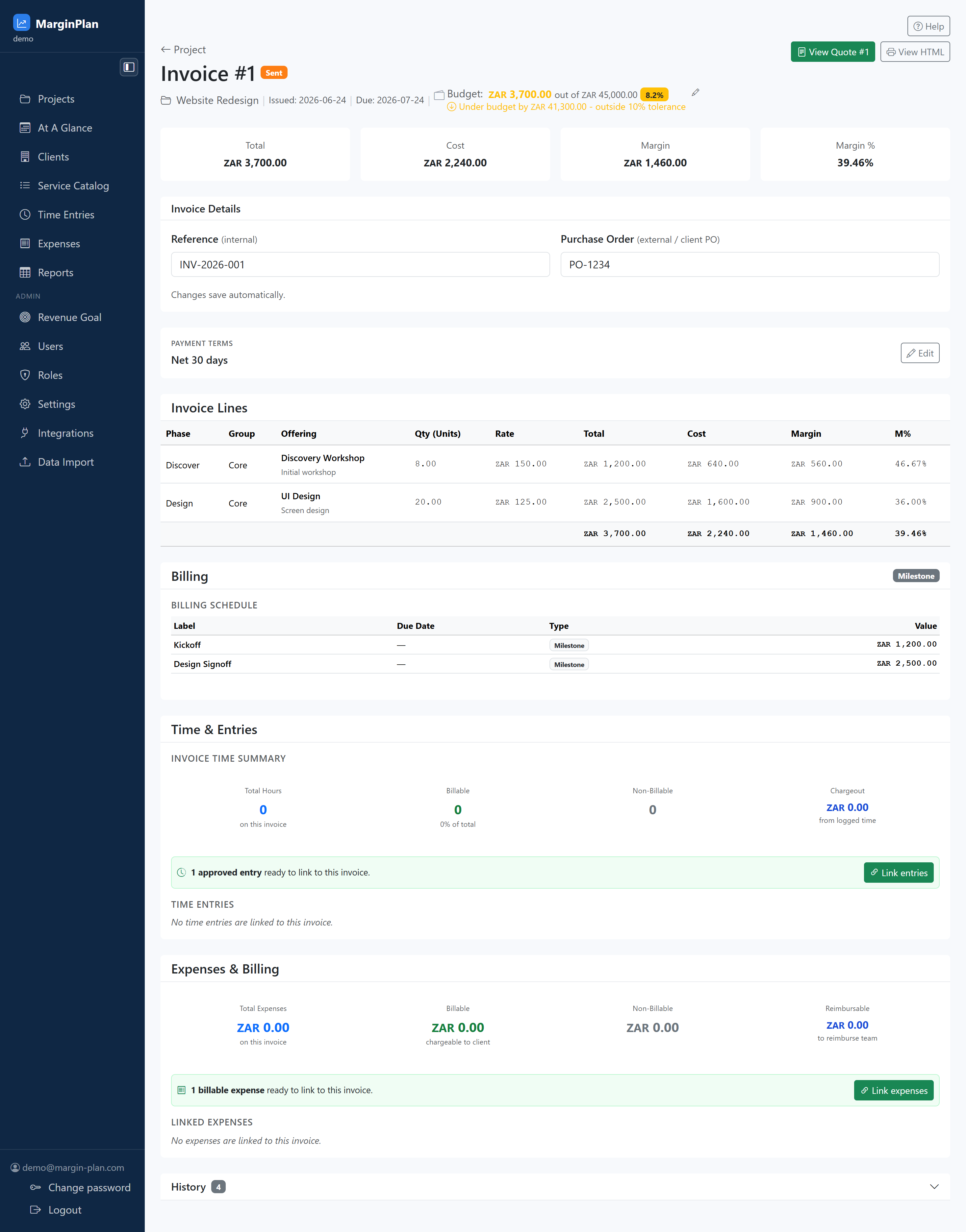
  8. After corrections, re-check budget, status mix, and totals before handing off to invoicing. The goal is to make billing-ready data obvious without further reconciliation.

    InteractionsProject Time Log: verify summary cards and table totals, then continue to the project invoice workflow if ready.
    After corrections, re-check budget, status mix, and totals before handing off to invoicing. The goal is to make billing-ready data obvious without further reconciliation.
    Open workflow: Invoice Workflow

What to review

Project context header

Confirms which project's time you are reviewing so edits and decisions stay scoped correctly.

Project time table

Lists date, user, task, and hours for the selected project so you can audit effort row by row.

Filters and search

Narrow by user, date range, or status when the project has heavy activity.

Team breakdown

Shows per-resource logged, billable, and allocated hours so manager-level reviews can validate effort distribution before corrections.

Entry actions

Open or adjust individual rows when corrections are needed before invoicing.

Guardrails

  • Time edits should retain valid project/task/date/hour relationships to keep billing and reporting consistent.
  • Access to project-level time detail may be broader for managers than individual contributors.

If it starts drifting

  • If expected rows are missing, check active filters and confirm you are in the correct project time view.
  • If an entry cannot be edited, verify your role includes time-management rights for that project.