Detailed guide

Invoice Workflow

The operating workflow for converting approved scope, logged effort, and reimbursable costs into accurate invoices that can be issued, collected, and defended.

Invoice Workflow is the final commercial control point before cash collection. The page combines financial totals, billing structure, payment terms, and traceability controls so you can issue invoices that are accurate, defensible, and easy to reconcile when questions arise.

Quick summary

  • Confirm invoice identity, status, and client/project context before changing any billing fields.
  • Check total, cost, and margin cards first so editing decisions are guided by commercial impact.
  • Audit invoice lines for quantity/rate accuracy and alignment with approved scope.
  • Set or verify payment terms and due-date expectations before issuing to avoid preventable collections friction.
  • Link missing approved time entries and billable expenses before issue so invoice support evidence is complete.
  • Review History after major edits to confirm the event trail is complete for internal finance and client queries.
  • Confirm client-facing visibility and access scope before sending invoice links outside the delivery team.
  • Grant or revoke invoice-specific portal access from the Client Invoice Access card before sharing links.

Put it into practice

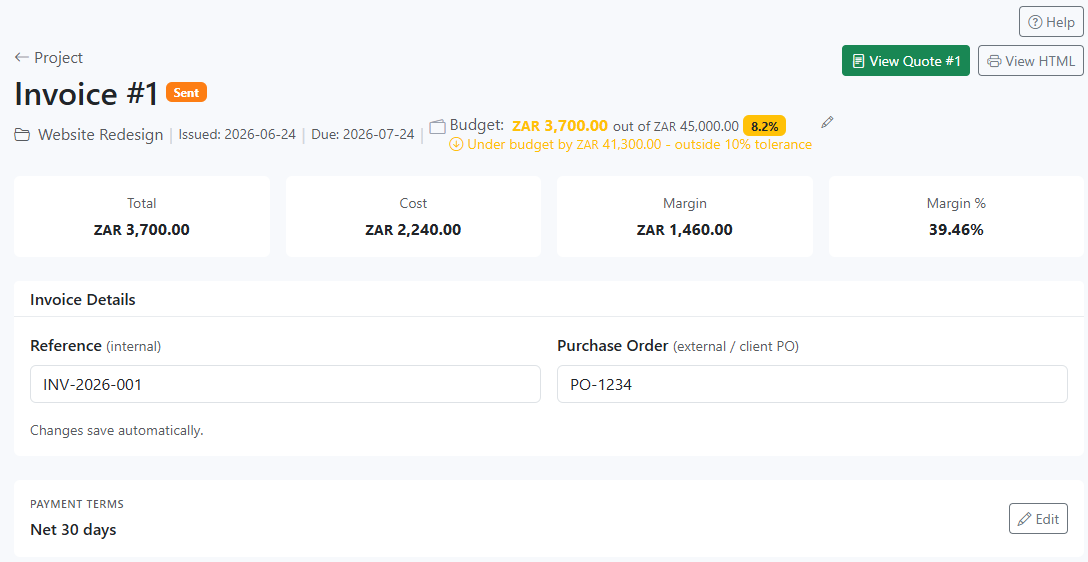
  1. Start by confirming invoice identity and lifecycle state. Validate status, issued/due dates, and project context so you do not apply issue or payment actions to the wrong record.

    InteractionsInvoice header area: verify Invoice #, status badge, date metadata, and project name.
    Start by confirming invoice identity and lifecycle state. Validate status, issued/due dates, and project context so you do not apply issue or payment actions to the wrong record.
    Open workflow: Project Detail
  2. Read Total, Cost, Margin, and Margin % before touching line details. This gives the commercial baseline for whether edits improve accuracy or hide margin leakage.

    InteractionsKPI cards under the invoice header: review Total, Cost, Margin, and Margin % values.
    Read Total, Cost, Margin, and Margin % before touching line details. This gives the commercial baseline for whether edits improve accuracy or hide margin leakage.
  3. Complete Invoice Details and confirm Payment Terms. Keep internal reference and client PO current, then ensure terms match contractual expectations before issuing.

    InteractionsInvoice Details panel and Payment Terms row: review reference, PO, and terms edit control.
    Complete Invoice Details and confirm Payment Terms. Keep internal reference and client PO current, then ensure terms match contractual expectations before issuing.
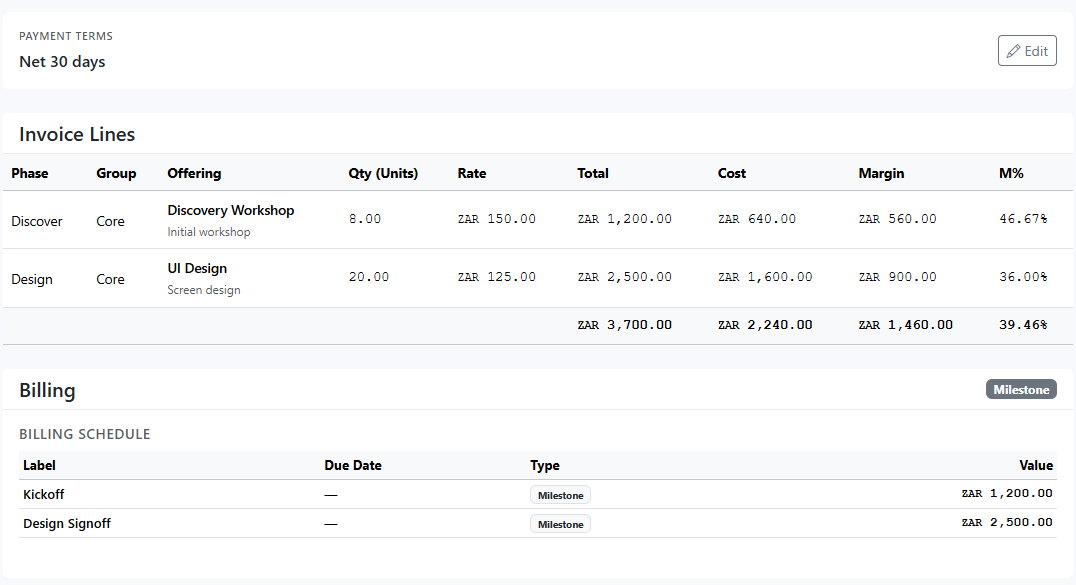
  4. Audit Invoice Lines and billing schedule integrity. Verify quantity, rate, totals, and margin at line level and confirm milestone schedule aligns with billing promise.

    InteractionsInvoice Lines table and Billing Schedule section in the middle of the page.
    Audit Invoice Lines and billing schedule integrity. Verify quantity, rate, totals, and margin at line level and confirm milestone schedule aligns with billing promise.
    Open workflow: Quote Workflow
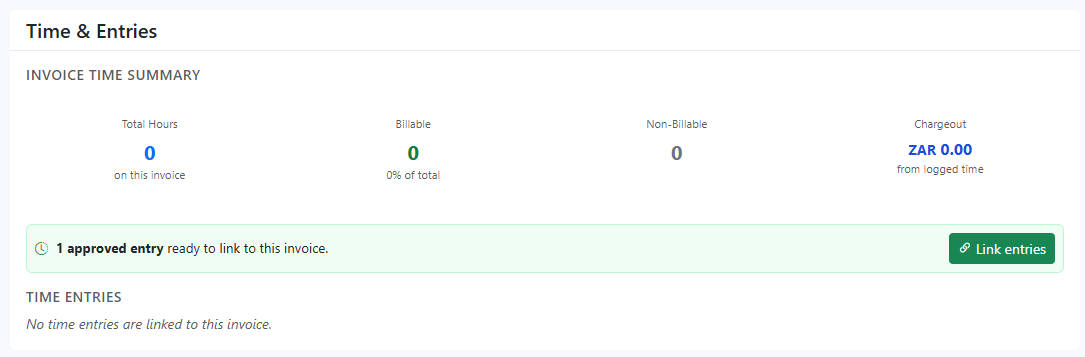
  5. Link approved time evidence before issuing. If approved entries are available but unlinked, attach them so chargeout values are traceable to delivery activity.

    InteractionsTime & Entries section: use Link entries and review Invoice Time Summary before and after linking.
    Link approved time evidence before issuing. If approved entries are available but unlinked, attach them so chargeout values are traceable to delivery activity.
    Open workflow: Project Time Entries
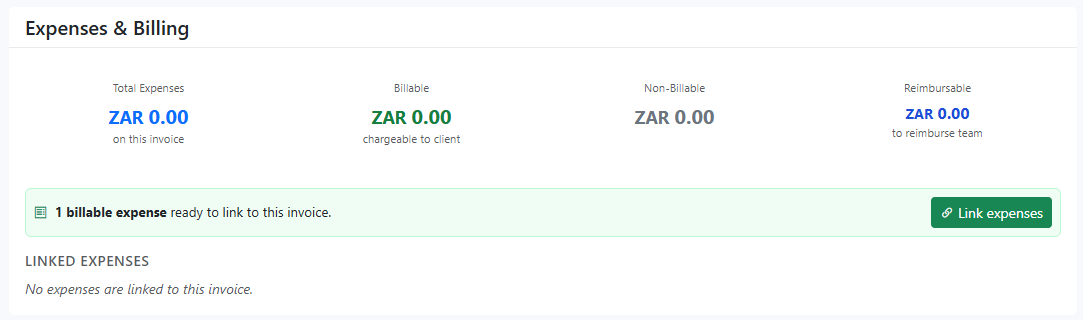
  6. Link billable expenses and verify reimbursement treatment. Attach valid costs to avoid out-of-band billing and to preserve cost-to-revenue traceability.

    InteractionsExpenses & Billing section: use Link expenses and inspect Linked Expenses.
    Link billable expenses and verify reimbursement treatment. Attach valid costs to avoid out-of-band billing and to preserve cost-to-revenue traceability.
    Open workflow: Expenses
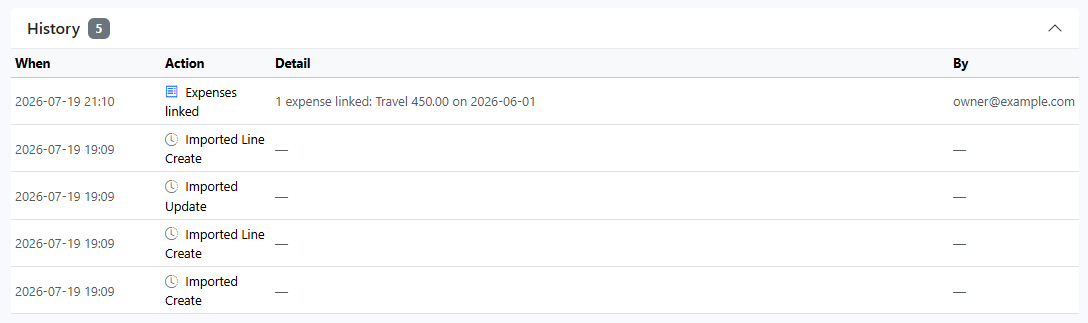
  7. Review History, then execute the lifecycle action (Issue or Mark Paid) only when line evidence, terms, and totals are complete.

    InteractionsHistory disclosure at the bottom and lifecycle action buttons near the top-right header area.
    Review History, then execute the lifecycle action (Issue or Mark Paid) only when line evidence, terms, and totals are complete.
  8. Set client-facing evidence visibility before sharing. Decide whether timesheet and expense detail should be visible to clients for this billing cycle based on contract expectations and dispute risk.

    InteractionsInvoice and workspace billing controls: review visibility settings governing client access to linked time and expense evidence.
    Open workflow: Settings
  9. Confirm client access provisioning and permissions. Ensure the intended client user can access the invoice view with the correct read scope, and verify they cannot reach unrelated internal records.

    InteractionsWorkspace administration: validate user account, role assignment, and final access behavior before sending client-facing links.
    Open workflow: Roles
  10. Manage sharing from Client Invoice Access before external sharing. Use Add To Allowed List for the target email, then remove outdated entries from Shared with.

    InteractionsInvoice page: open Client Invoice Access, enter Client email, click Add To Allowed List, then verify the Shared with list.
    Open workflow: Client Portal

What to review

Invoice header and lifecycle state

Confirms invoice identity, issued/due/paid dates, project context, and current status so you can apply the correct next action instead of editing the wrong lifecycle stage.

Budget context strip

Compares invoice total against project client budget and tolerance context so you can detect under/over-budget billing behavior before client send.

Total, cost, margin, and margin % cards

Gives a fast financial read on the invoice itself. Use this before changing terms or line composition so you know whether the invoice supports or erodes project margin.

Invoice Details panel

Stores internal reference and client PO fields. Keep these complete for finance handoff and dispute traceability.

Payment Terms control

Shows the active terms policy (for example Net 30) and lets authorized users correct terms so due-date expectations are explicit.

Invoice Lines table

Breaks down phase/group/offering values with quantity, rate, total, cost, and margin. This is the primary line-level audit surface before issue or dispute response.

Billing and schedule section

Displays billing method and milestone schedule so promised billing mechanics reconcile with issued invoice value.

Time & Entries section

Summarizes linked hours and chargeout and exposes Link entries for attaching approved but unlinked time evidence.

See guide: Project Time Entries

Expenses & Billing section

Summarizes linked expense values and exposes Link expenses so reimbursable or billable costs can be attached before issue.

See guide: Expenses

History trail

Captures invoice events and edits for auditability; use it to validate who changed what and when before escalating exceptions.

Issue/Mark Paid actions

Lifecycle actions enforce commercial state transitions that reporting and collections depend on.

Client-facing evidence visibility controls

Use available visibility options to decide whether clients can view supporting timesheet and expense detail alongside invoice values.

See guide: Settings

Client access and permission handoff

Before sharing invoice records, confirm the access pathway and role scope for client-facing users so they can view exactly what is intended.

See guide: Users

Client Invoice Access panel

The Client Invoice Access card lets you add emails with Add To Allowed List, shows Shared with entries, and removes access with the x action.

See guide: Client Portal
Guardrails

  • Invoice totals should reconcile with line-level quantity x rate logic and milestone schedule values before issue.
  • Reference, PO, issued date, due date, and status context should remain coherent so downstream accounting exports are valid.
  • Linked time and expense relationships should never be orphaned by reassignment actions.
  • Payment terms updates should persist immediately and reflect in due-date expectations used by collections reporting.
  • History should capture major state and field changes so the invoice is auditable during disputes or month-end close.
  • Client-visible evidence settings should match contractual disclosure expectations before invoice links are shared externally.
  • Issue, payment-state transitions, and financial field edits should be restricted to roles accountable for billing integrity.
  • Delivery contributors may need read access for traceability without access to lifecycle-changing actions.
  • Linking/reassigning entries and expenses should be permission-gated because it changes commercial evidence and reporting outcomes.
  • Client-facing access should be provisioned with least privilege and validated against role policy before release.

If it starts drifting

  • If totals look wrong, verify line quantity/rate values and milestone schedule before applying manual corrections.
  • If margin drops unexpectedly, compare invoice lines against approved quote/estimate structure for silent scope drift.
  • If Link entries or Link expenses shows no candidates, confirm records are approved and not already attached elsewhere.
  • If due-date or collection expectations seem off, confirm Payment Terms and issued date were set correctly.
  • If status-based actions are unavailable, verify current invoice status and role permissions before assuming a defect.
  • If clients cannot see expected supporting evidence, review invoice visibility controls and client role permissions together.
  • If clients can see too much detail, tighten visibility settings and role scope before sharing additional invoice links.