Public product guide

MarginPlan Documentation

This guide explains the app from the top down: from the operating approach to how each page fits into the real planning and delivery workflow.

Search cards
No cards matched that search. Try a broader term.
1. Approach

MarginPlan follows a simple operating loop

This is the operational backbone of the app. Each step has a clear input, a clear output, and a practical "done" condition so your team can move from planning to billing without losing margin visibility.

1. Set the goal

Turn an annual revenue target into monthly operating expectations for delivery, utilization, and margin.

  • Input: annual target, expected capacity, and desired margin.
  • Decision: what mix of work and pricing can realistically hit the number.
  • Done when: monthly targets are visible and owned by the team.
Output: a measurable yearly plan broken into monthly goals.
2. Plan the work

Translate goals into scoped work using projects, estimates, roles, and catalog pricing that can be quoted without rework.

  • Input: target outcomes, client demand, and service catalog structure.
  • Decision: how work is phased, resourced, and priced.
  • Done when: estimate totals and delivery scope agree before client approval.
Output: approved, internally consistent work plans ready for commercial conversion.

3. Bill the client

Move from approved estimate to quote and invoice with clean traceability, so billed value stays aligned to what was scoped.

  • Input: approved estimates and client billing context.
  • Decision: timing, billing milestones, and final charge basis.
  • Done when: invoice lines can be traced back to approved scope.
Output: auditable billing records tied to project progress.

4. Control expenses

Capture time and spend as work happens, then compare actual cost to planned assumptions before margin drift becomes a surprise.

  • Input: time entries, expenses, and project allocations.
  • Decision: where to correct rates, effort, or scope when variance appears.
  • Done when: margin movement is visible weekly, not discovered at month-end.
Output: an honest margin signal you can act on early.
2. Workspaces

Every workspace is its own operating environment

MarginPlan keeps data scoped to a workspace. That means projects, clients, catalog items, users, time, expenses, and reports all belong to the workspace you are inside. Public pages introduce the product; workspaces are where the operating details live.

Scoped data

Each workspace has its own records, so teams can run their own pricing and delivery process without overlap.

Roles and access

Role-based permissions control who can see, edit, or manage each area, which keeps sensitive areas contained.

Workspace experience

The logged-in app shows the sidebar, active state, and admin tools used to run the business day to day.

Demo screenshots

The examples below use the local demo workspace so each screenshot shows a realistic populated state.

Accessing a specific workspace: if you are new, create a workspace first. If one already exists, choose Sign In on the public page and enter your workspace slug, then sign in with the email and password tied to that workspace account to reach that workspace.

Workspace format: https://margin-plan.com/your-workspace-slug
Example: https://margin-plan.com/demo

Login: sign in with the username or email and password tied to that workspace account. If you do not know your workspace slug or cannot sign in, ask a workspace admin to confirm the workspace slug and account status.

Pages

All pages

Each card below matches a page in the live app. The screenshot shows the real page, while the notes explain what it is for, when to use it, and which actions matter most.

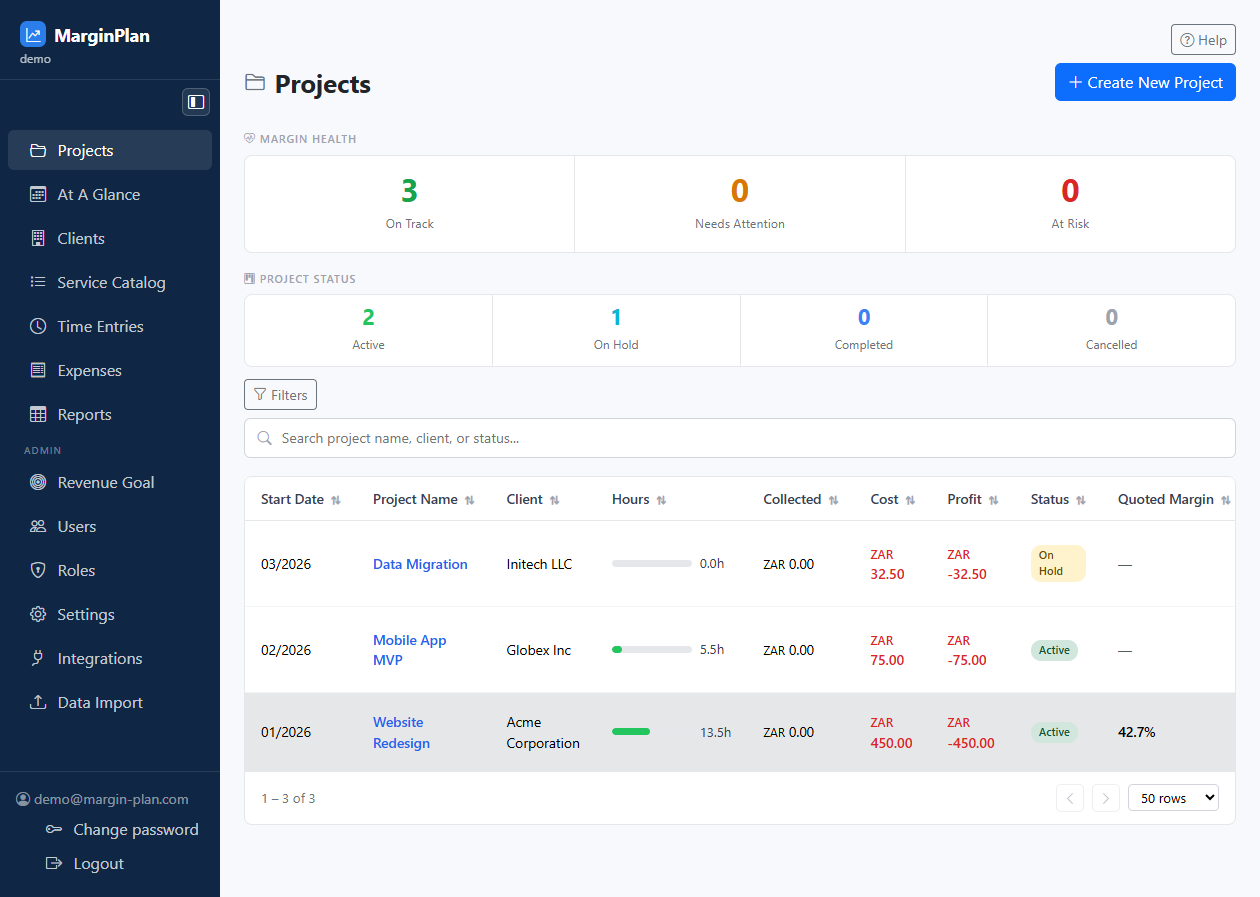
Projects

Demo page

The main workspace for active client work, where you create, review, and manage projects end to end.

When to use it

Use this when you need to see every live project, open one project, or create a new one.

Main actions

  • Create a project and attach it to the right client.
  • Open a project to review estimates, quotes, invoices, time, and expenses.
  • Track project status and progress across the delivery lifecycle.
Projects screenshot

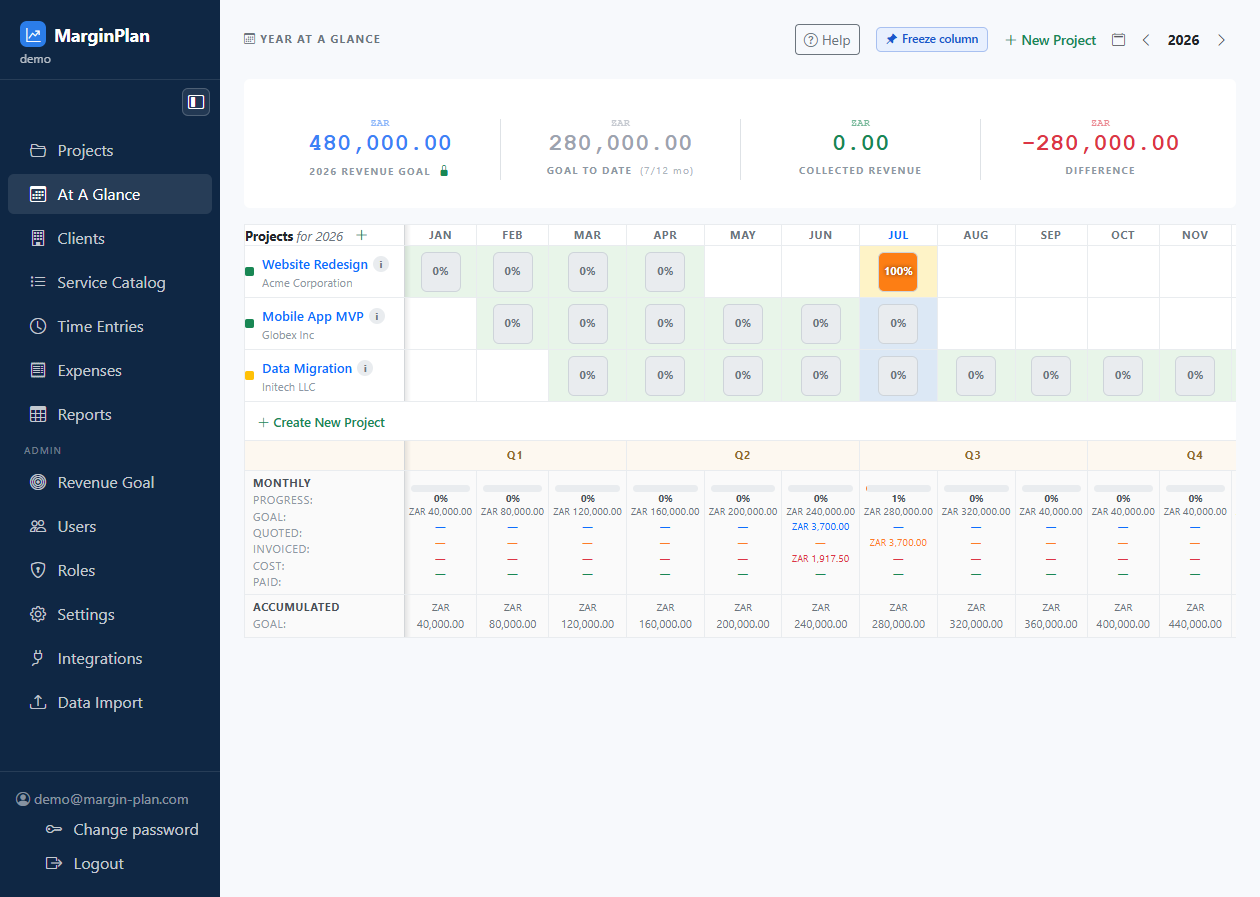
At A Glance

Demo page

The yearly operating board for comparing target pace, project delivery timing, and commercial movement month by month.

When to use it

Use this when you need to decide where attention goes this week across the full portfolio before opening project-level records.

Main actions

  • Read yearly target pace before judging individual project performance.
  • Scan project month cells to identify delayed, stalled, or concentration risk.
  • Move from portfolio signal to project correction with one click.
At A Glance screenshot

Estimates

Demo page

The workspace-wide estimate index for reviewing and triaging all estimates across projects.

When to use it

Use this when you need a cross-project estimate queue for draft, approved, quoted, or rejected estimate states.

Main actions

  • Review estimate status and commercial posture across all projects.
  • Filter by status, client, project, and search terms before opening detail.
  • Open the right estimate detail page for line-level corrections or handoff.
Estimates screenshot

Quotes

Demo page

The workspace-wide quote index for monitoring quote lifecycle, billing method, and commercial readiness across projects.

When to use it

Use this when you need to triage quotes across draft, sent, accepted, and rejected states at portfolio level.

Main actions

  • Review quote lifecycle status and billing-method distribution.
  • Filter by status, client, project, and billing method before opening detail.
  • Open quote detail for status progression, line review, and invoice handoff checks.
Quotes screenshot

Invoices

Demo page

The workspace-wide invoice index for tracking billing lifecycle, due states, and payment progress across projects.

When to use it

Use this when finance or project leads need a cross-project billing queue view for draft, issued, overdue, and paid invoices.

Main actions

  • Review invoice status distribution and payment timing exposure.
  • Filter by status, client, and project to target billing follow-up.
  • Open invoice detail to validate lines, terms, and evidence linkage.
Invoices screenshot

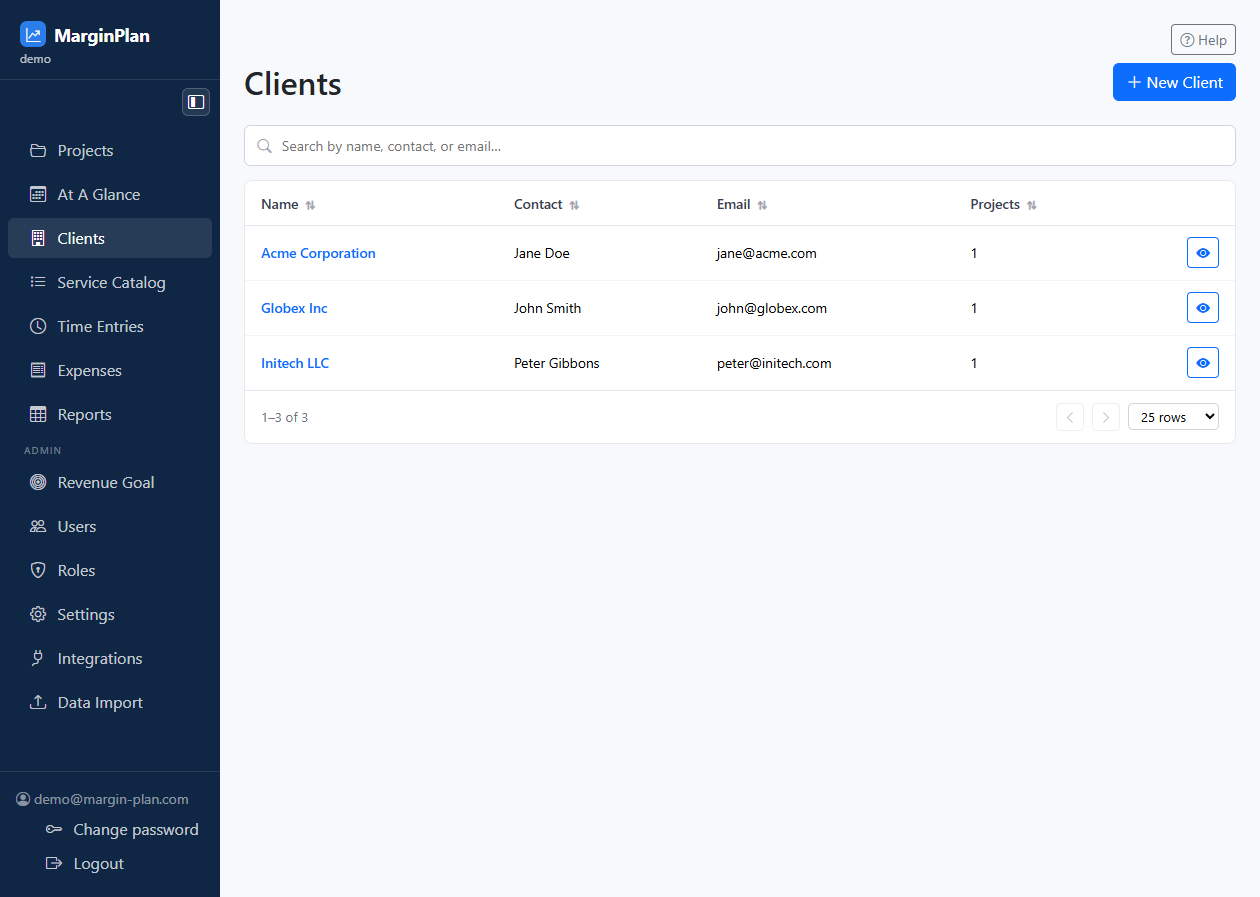
Clients

Demo page

The operational workflow for creating, validating, and maintaining customer account records that all downstream project and billing work depends on.

When to use it

Use this when onboarding a new customer, cleaning account data, resolving duplicate records, or confirming the right client context before project, quote, or invoice actions.

Main actions

  • Create and maintain accurate client identity and contact information.
  • Validate the correct client record before attaching new delivery or commercial work.
  • Audit linked projects and account context to prevent misattributed downstream records.
  • Resolve data hygiene issues such as duplicates or stale contact details before they impact billing.
Clients screenshot

Client Portal

Demo page

The external client flow for passwordless sign-in, a Client Documents list, and secure quote/invoice review links.

When to use it

Use this when a client needs Email Sign-in Link access, needs to open shared documents from Client Documents, or needs to sign out and restart access.

Main actions

  • Grant sharing first from Client Review Access, Client Invoice Access, or Client Portal Access.
  • Use Client Portal Sign-in to send an Email Sign-in Link to an allowed email.
  • Open Client Documents and use Open on quote/invoice rows.
  • Use Sign Out and remove allowed-list entries when access should end.
Client Portal screenshot

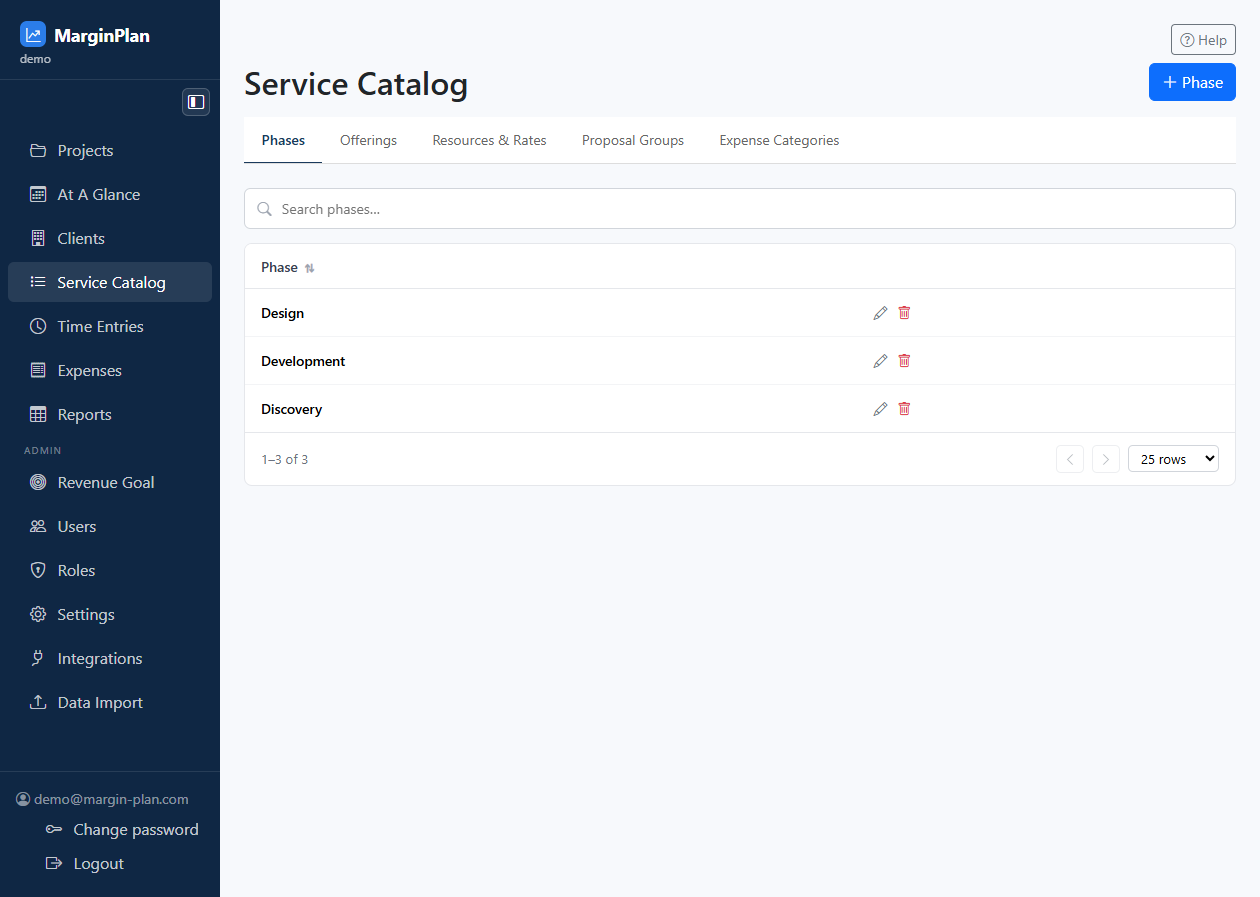
Service Catalog

Demo page

Reusable phases, offerings, groups, resources, and rates that keep pricing consistent.

When to use it

Use this when you need to maintain pricing inputs before building estimates or quotes.

Main actions

  • Maintain the reusable catalog structure.
  • Update offering and resource rates used in estimates.
  • Keep pricing definitions consistent across the workspace.
Service Catalog screenshot

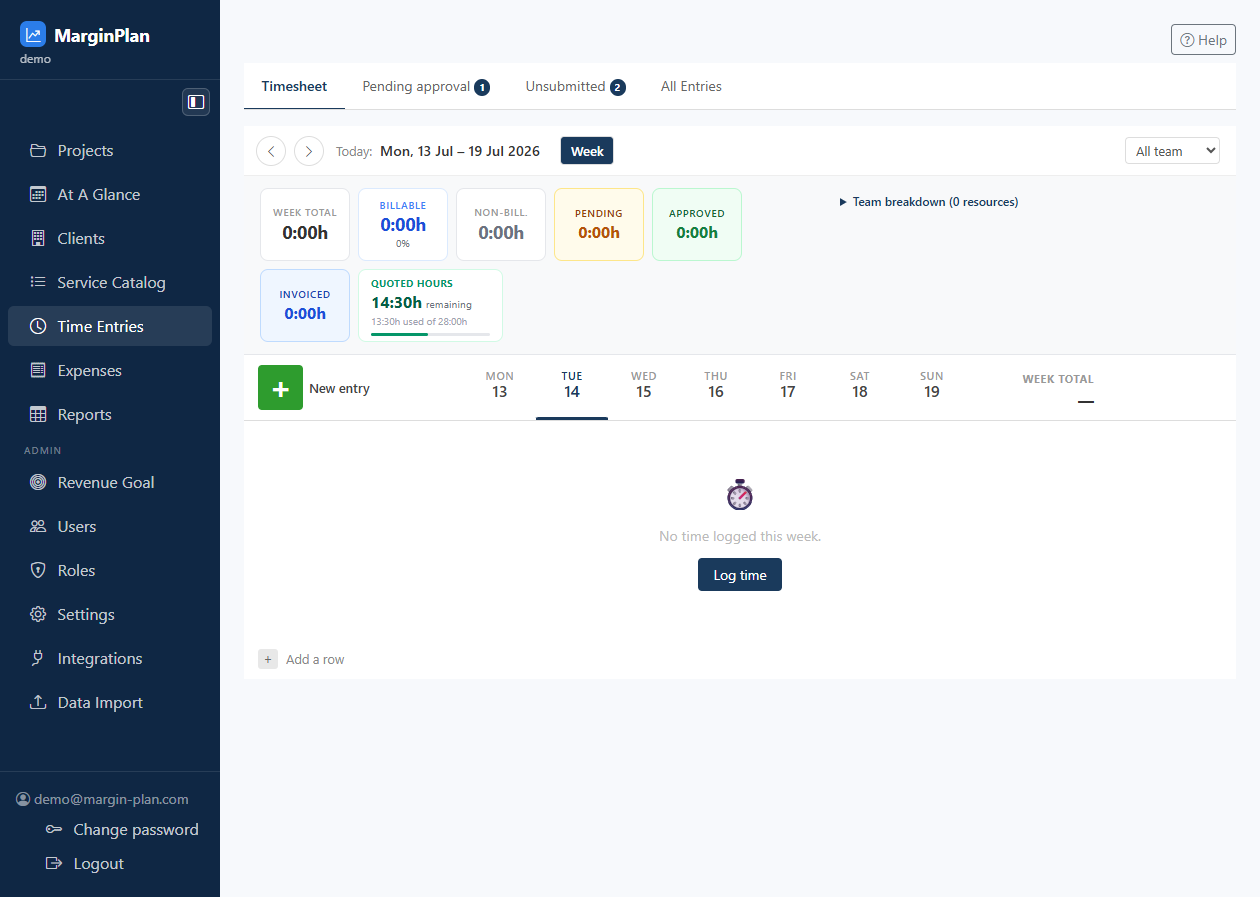
Time Entries

Demo page

The operational workflow for capturing, validating, and maintaining billable and non-billable delivery effort across the entire workspace.

When to use it

Use this when you need to enter time, fix timesheet errors, investigate effort anomalies, prepare billing evidence, or verify delivery cost integrity before invoicing.

Main actions

  • Capture accurate hours against the correct project and task context.
  • Validate submission and approval readiness before billing actions are taken.
  • Audit workspace-wide effort patterns by date, user, project, and status.
  • Correct row-level mistakes without breaking reporting or invoice traceability.
Time Entries screenshot

Expenses

Demo page

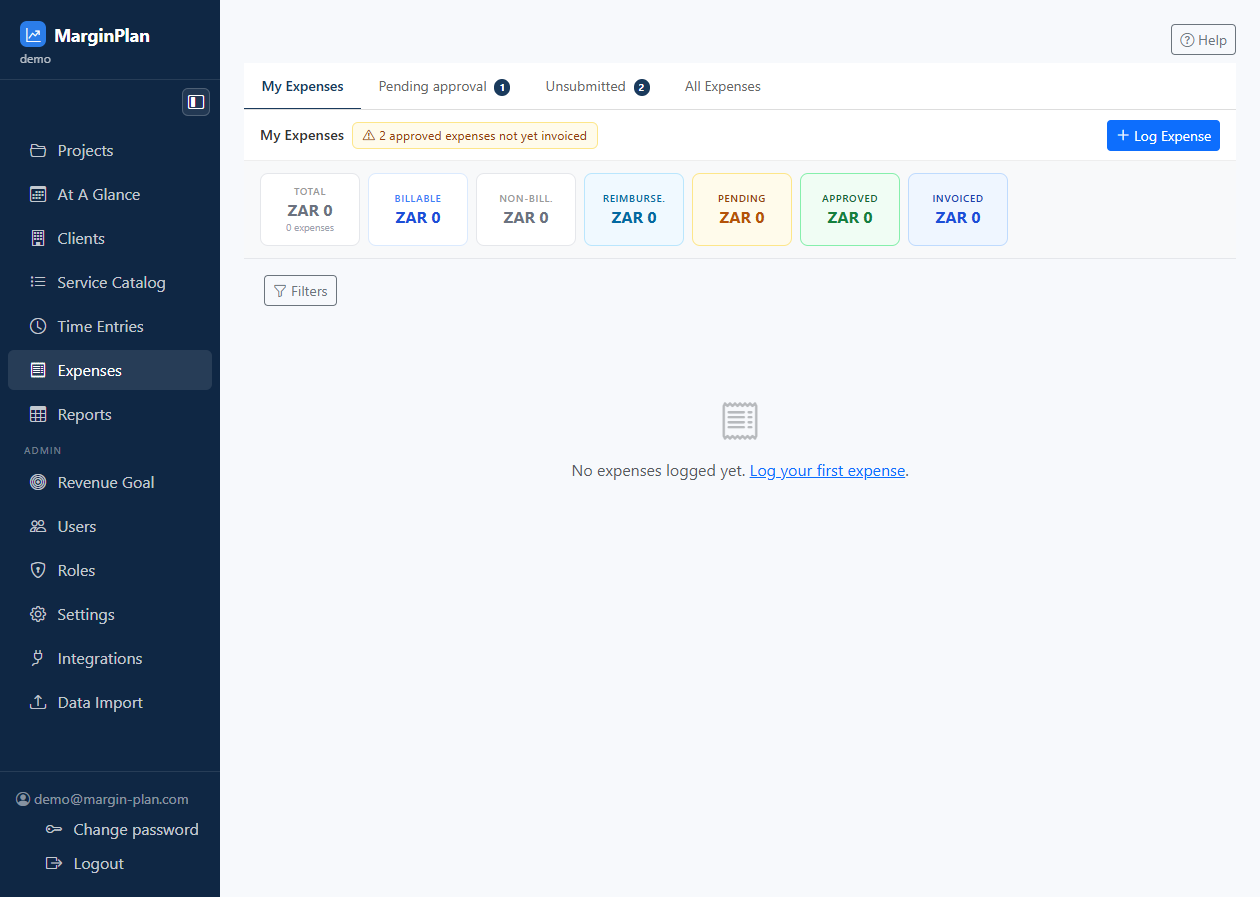
A central place to track project spend, billable costs, and reimbursable expenses.

When to use it

Use this when you need to log, review, or invoice project spend.

Main actions

  • Capture expenses against a project and category.
  • Mark items billable or reimbursable when needed.
  • Keep margin calculations honest by tracking real costs.
Expenses screenshot

Reports

Demo page

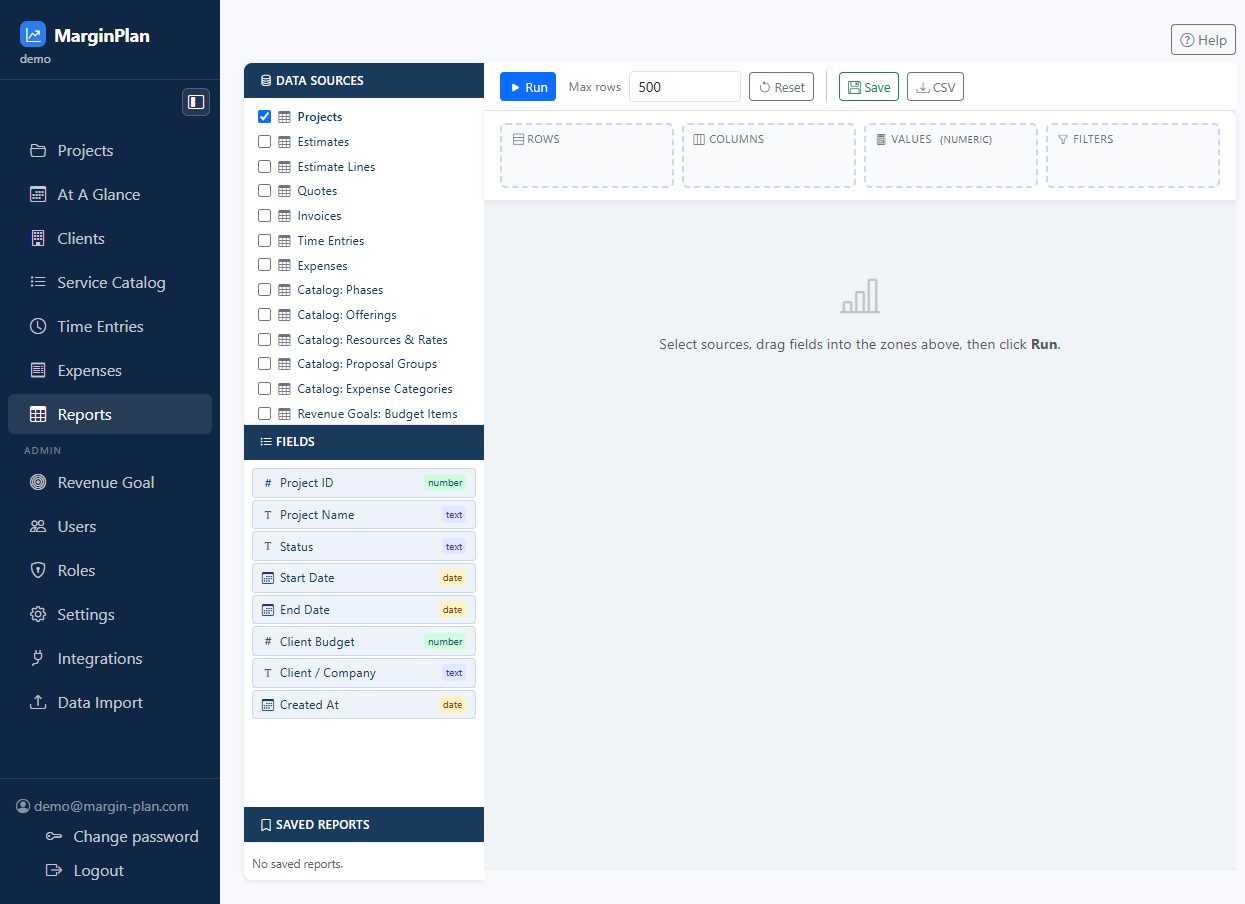
Performance reporting across revenue, margin, delivery, and spend.

When to use it

Use this when you want business-level insight rather than project-level detail.

Main actions

  • Review overall performance across the workspace.
  • Filter into a period, client, or metric that needs attention.
  • Use the results to adjust delivery or commercial decisions.
Reports screenshot

Revenue Goal

Demo page

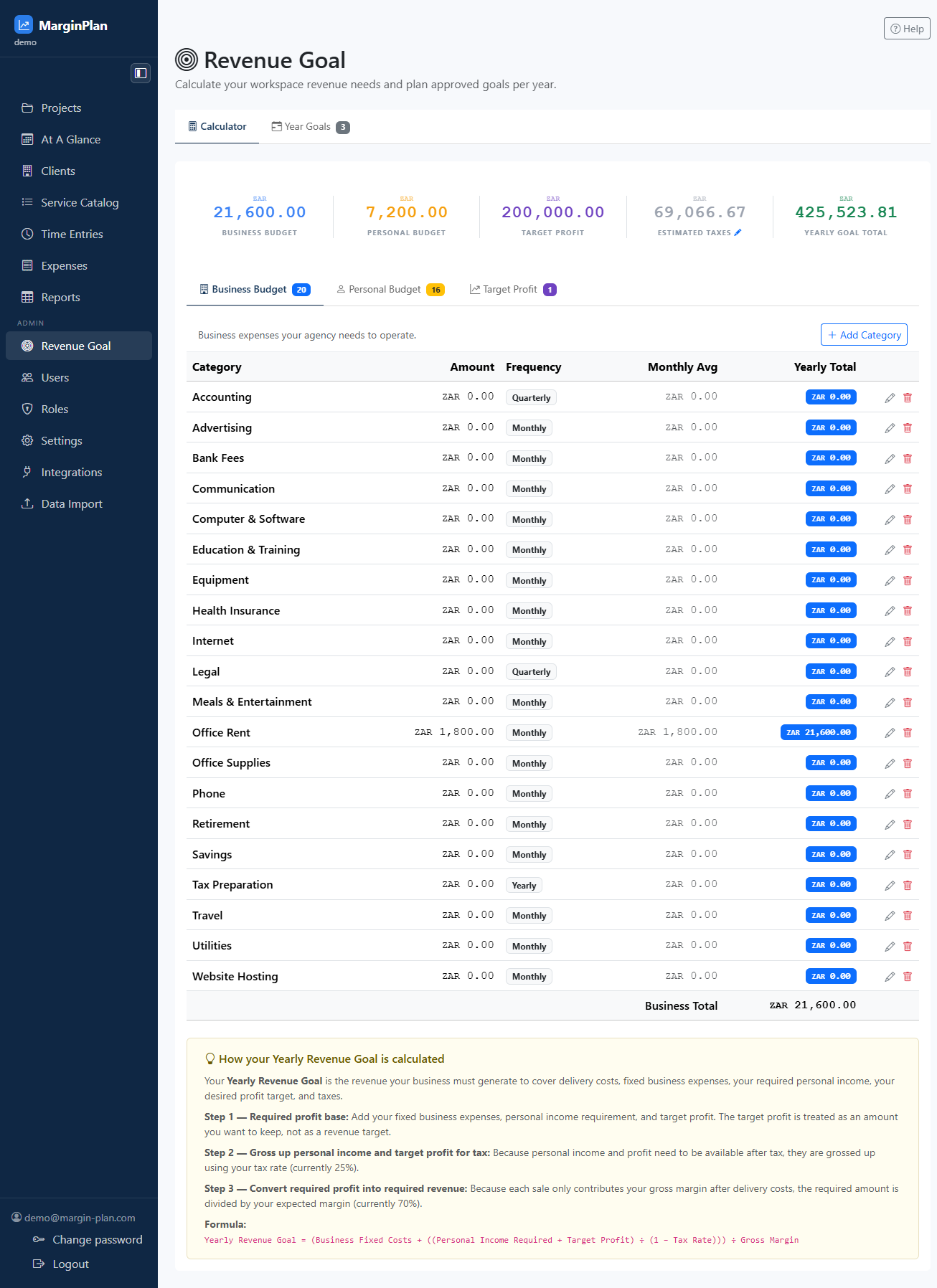
The operating workflow for translating business costs, personal income requirements, target profit, and tax settings into a defendable yearly revenue target.

When to use it

Use this when planning a new year, revising growth assumptions, preparing operating reviews, or validating whether current sales and delivery pace can support required revenue.

Main actions

  • Model required revenue from budget and profit assumptions in the Calculator tab.
  • Stress-check target assumptions before approving a year-level goal.
  • Publish and maintain yearly goals so At A Glance and reporting use explicit planning baselines.
  • Use approved goals to align project pipeline, quote volume, and invoicing expectations.
Revenue Goal screenshot

Capacity-to-Revenue Planner

Demo page

The scenario-planning workflow for testing whether an annual revenue target is achievable with the team's available delivery capacity.

When to use it

Use this when pressure-testing a selected year goal, comparing confirmed revenue against delivery capacity, evaluating utilisation assumptions, or modeling whether extra contractor capacity or higher rates are needed.

Main actions

  • Select a planning year and compare its revenue target with confirmed commercial coverage already visible in the workspace.
  • Model internal team delivery capacity by role or person using hours, leave, non-billable time, utilisation, and rate assumptions.
  • Add outsourced or contractor capacity assumptions to test whether supplemental delivery makes the target feasible.
  • Save named scenarios for later comparison when planner-management permissions are available.
Capacity-to-Revenue Planner screenshot

Users

Demo page

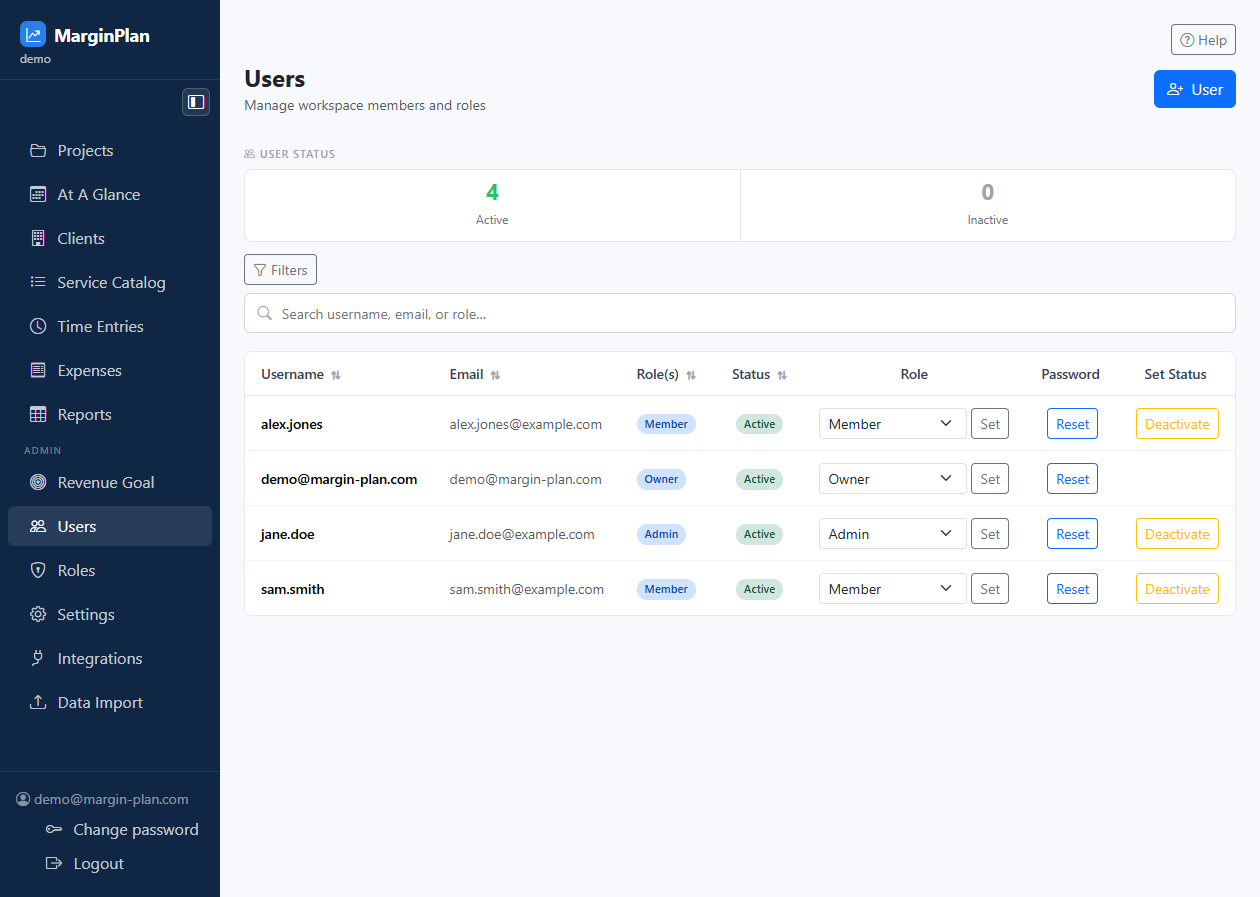
Workspace membership management for inviting, reviewing, and maintaining team access.

When to use it

Use this when you need to add users, update access, or review who can work in the workspace.

Main actions

  • Invite new users into the workspace.
  • Adjust access or deactivate old accounts.
  • Keep the team list aligned with actual access needs.
Users screenshot

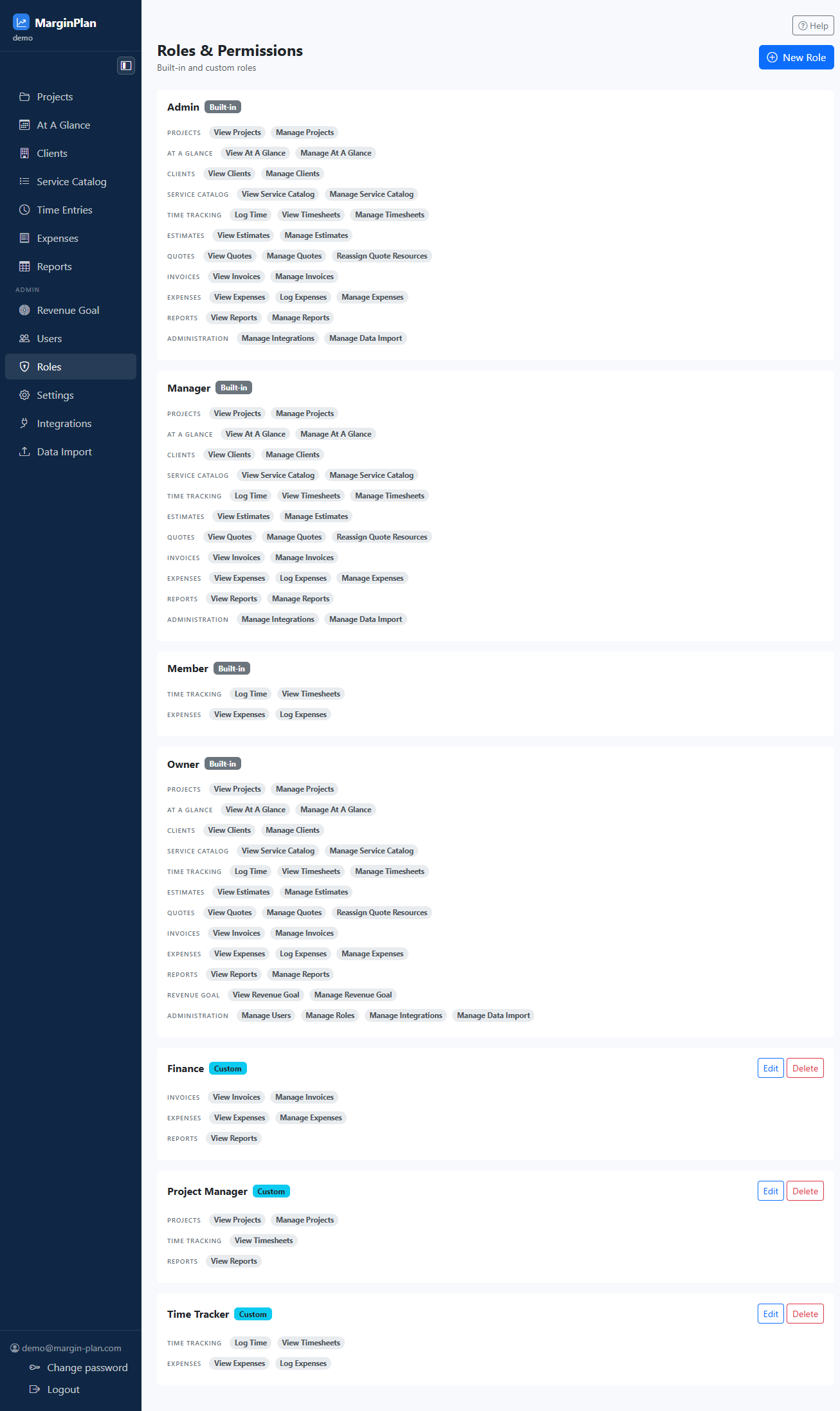
Roles

Demo page

The workspace access-control hub for reviewing built-in roles, maintaining custom permission bundles, and deciding whether a user issue should be fixed at the role layer.

When to use it

Use this when a team member can see too much, cannot reach a feature they need, or the workspace needs a reusable permission bundle that does not exist yet.

Main actions

  • Review built-in and custom roles before changing any individual user's assignment.
  • Create a new custom role when the workspace needs a reusable access pattern that should apply to more than one person.
  • Edit or delete custom roles so sensitive workflows stay limited to the right people without drifting into one-off exceptions.
Roles screenshot

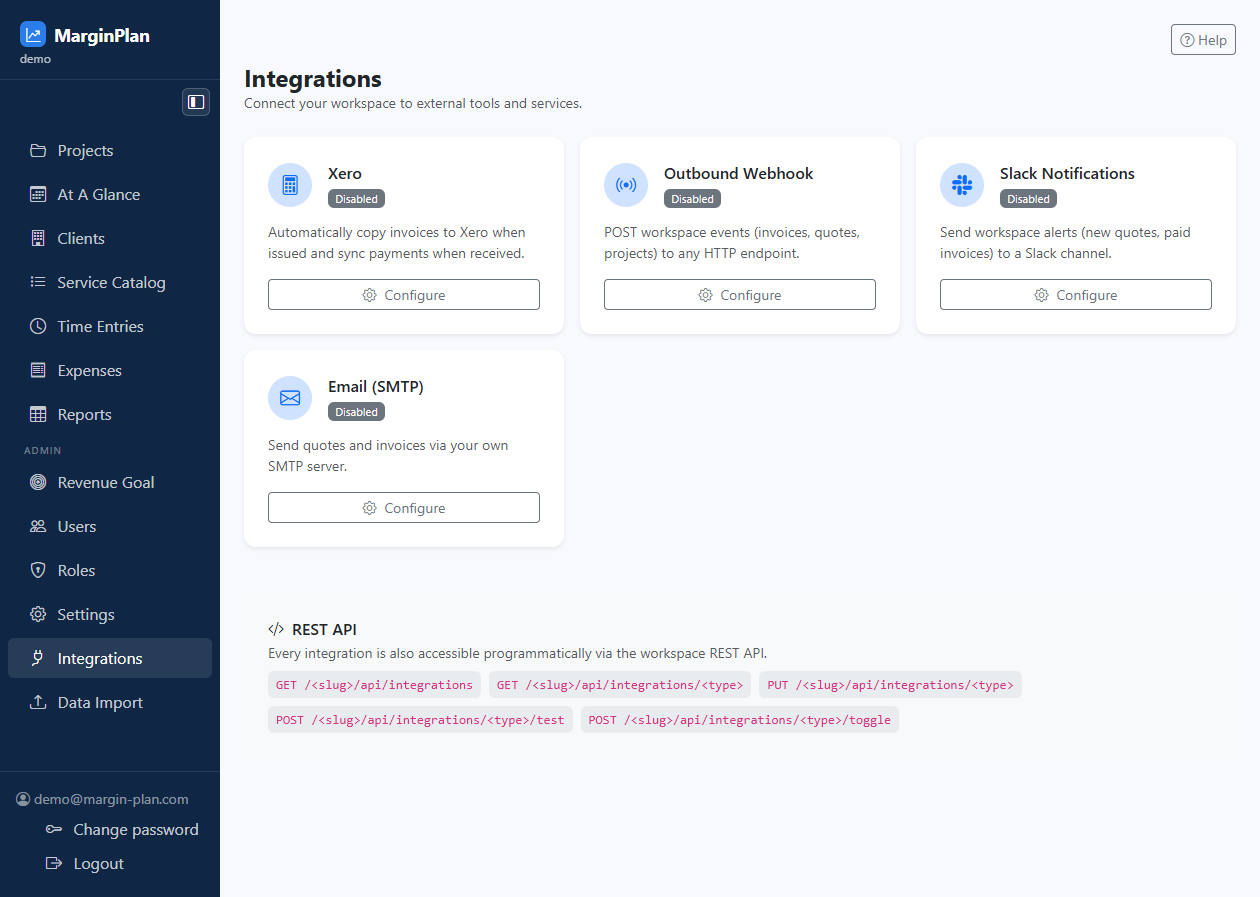
Integrations

Demo page

Connected services and sync settings that extend MarginPlan beyond the core app.

When to use it

Use this when you need to connect, inspect, or troubleshoot an external service.

Main actions

  • View configured integrations and their status.
  • Review how data syncs with connected services.
  • Keep the workspace connected to other tools.
Integrations screenshot

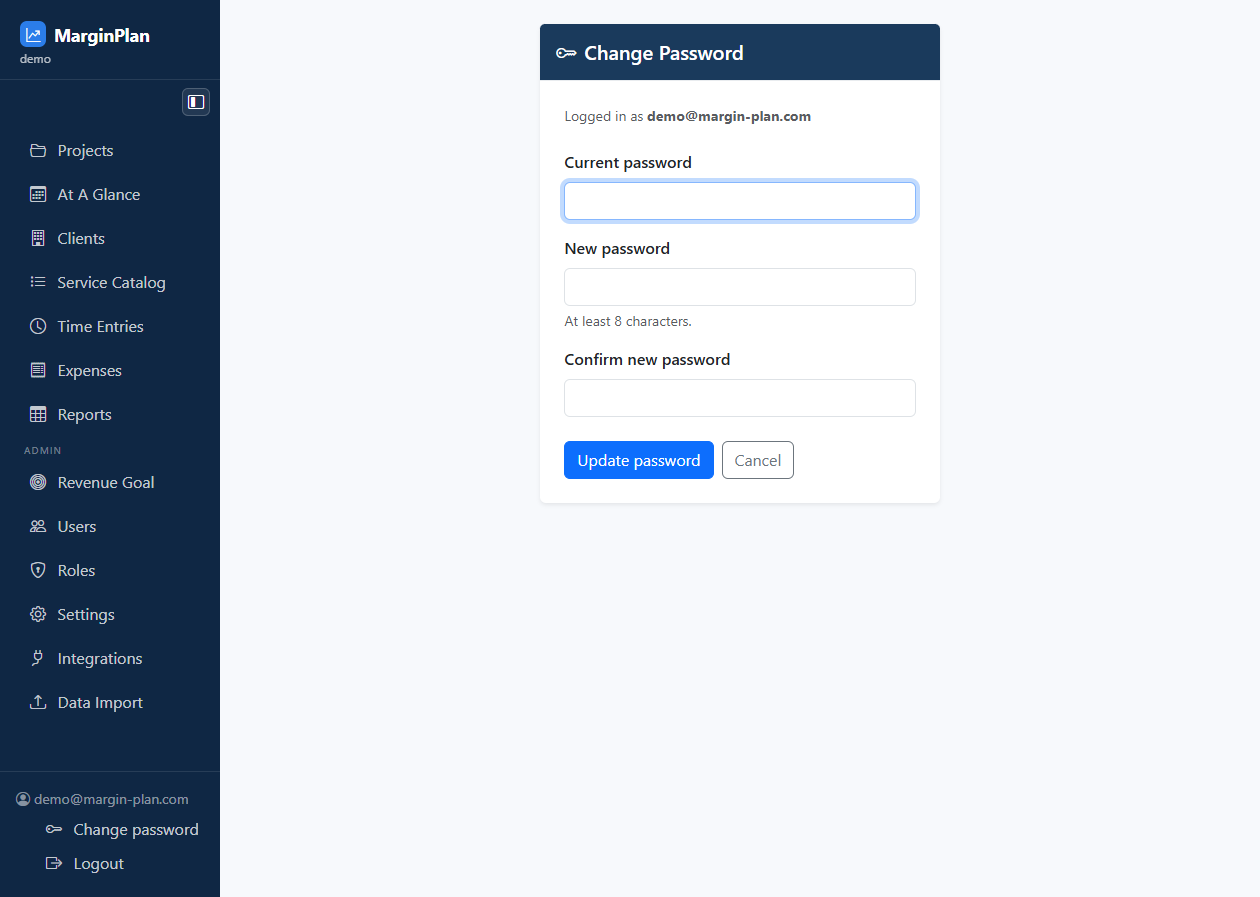
Change Password

Demo page

Account security page for updating your sign-in password.

When to use it

Use this when you need to change the credentials for your account.

Main actions

  • Update your password safely.
  • Keep your account access current.
  • Use it whenever your security policy changes.
Change Password screenshot

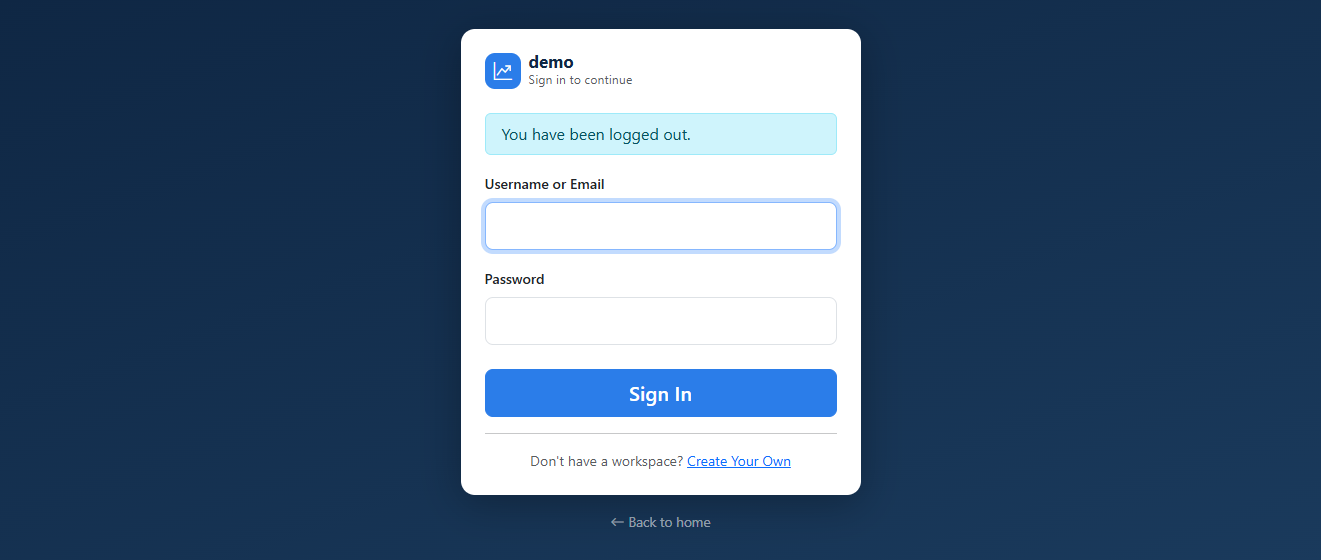
Logout

Demo page

The account action that ends the current session and returns you to sign-in.

When to use it

Use this when you are done working or need to switch users on the same device.

Main actions

  • End the current authenticated session.
  • Return to the sign-in screen.
  • Use it when you need to leave the workspace securely.
Logout screenshot