Detailed guide

Revenue Goal

The operating workflow for translating business costs, personal income requirements, target profit, and tax settings into a defendable yearly revenue target.

Revenue Goal is the annual planning control point. It converts financial intent into operational targets by connecting fixed costs, desired owner outcomes, tax effects, and margin assumptions. If this model is weak, every downstream dashboard can look precise while still steering the business off course.

Quick summary

  • Validate summary bar math before changing item-level assumptions.
  • Update business and personal budget categories when fixed cost posture changes.
  • Revisit target profit assumptions when growth or owner payout expectations move.
  • Use the formula context to explain why required revenue changed between planning cycles.
  • Create or adjust Year Goals only after calculator assumptions are stable.
  • Link approved targets into weekly operating review through At A Glance and reporting.

Put it into practice

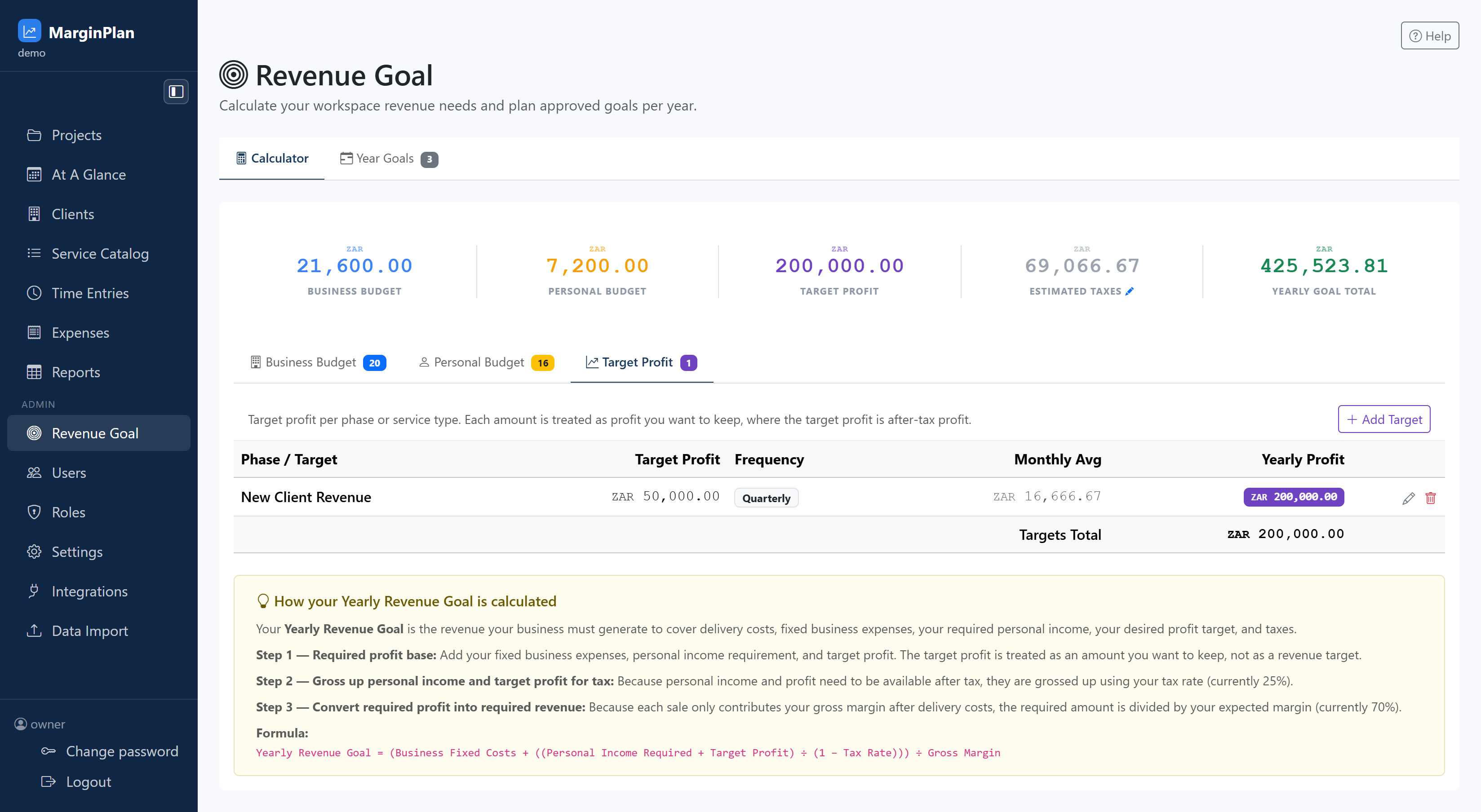
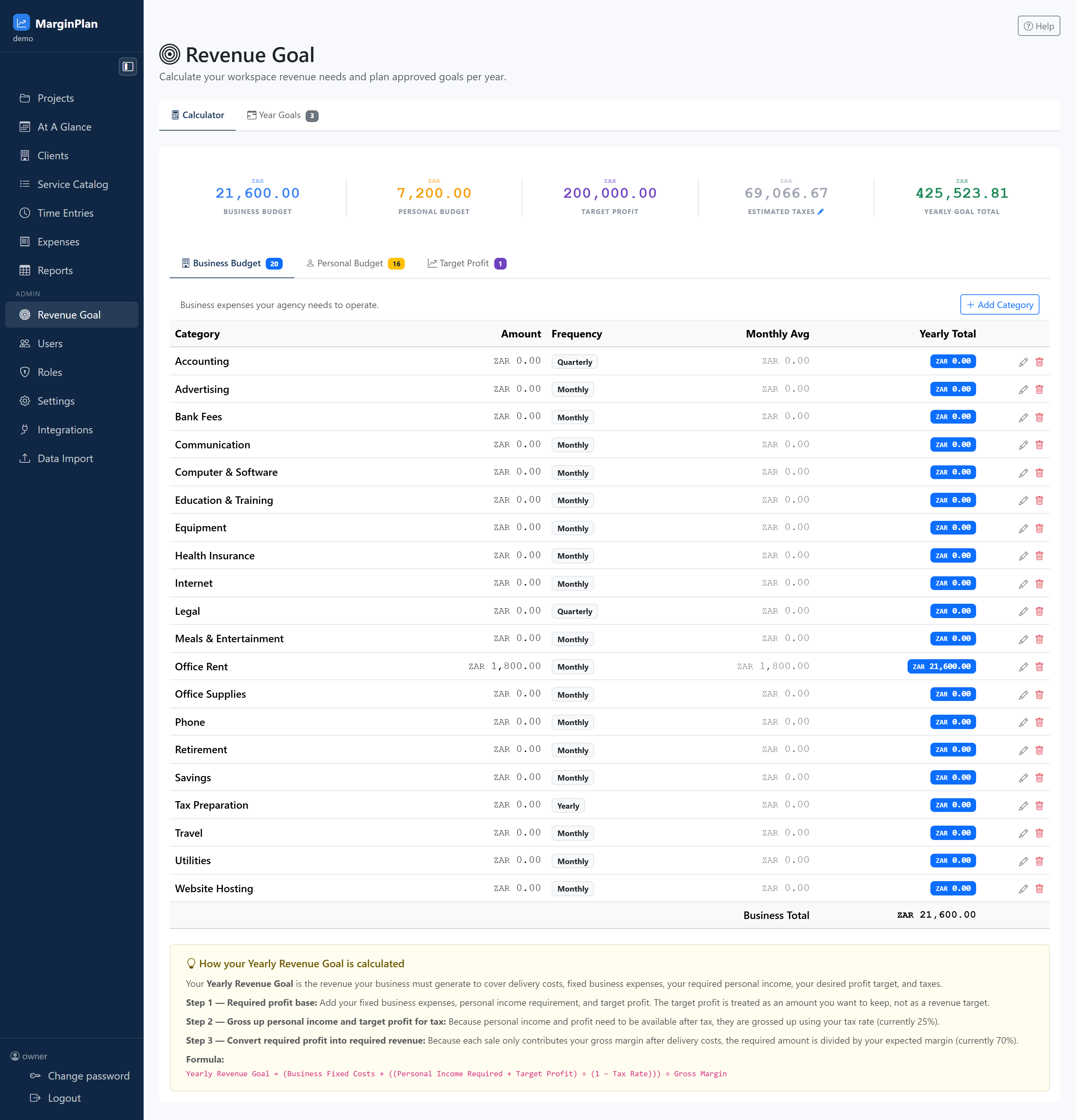
  1. Start in Calculator and verify the summary bar math context before editing any assumptions. Confirm Business Budget, Personal Budget, Target Profit, Estimated Taxes, and Yearly Goal Total are directionally plausible.

    InteractionsRevenue Goal page header and summary bar directly under the Calculator tab.
    Start in Calculator and verify the summary bar math context before editing any assumptions. Confirm Business Budget, Personal Budget, Target Profit, Estimated Taxes, and Yearly Goal Total are directionally plausible.
  2. Audit Business and Personal budget categories first, because stale fixed-cost assumptions are the most common source of misleading yearly targets.

    InteractionsCalculator tab: Business Budget and Personal Budget inner tabs and their category tables.
    Audit Business and Personal budget categories first, because stale fixed-cost assumptions are the most common source of misleading yearly targets.
    Open workflow: Edit Goal Item
  3. Open Target Profit assumptions and confirm phase/target entries still match current commercial intent before publishing yearly targets.

    InteractionsCalculator tab: click Target Profit inner tab and review target rows and amounts.
    Open Target Profit assumptions and confirm phase/target entries still match current commercial intent before publishing yearly targets.
    Open workflow: Edit Sales Target
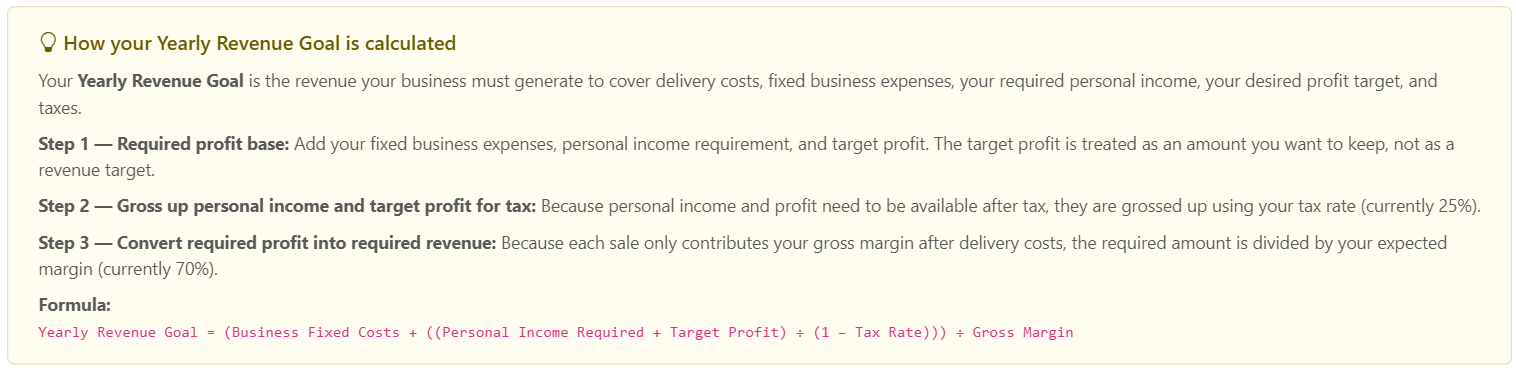
  4. Review the calculation explanation panel to validate tax and margin sensitivity. If yearly goal movement seems extreme, this panel is the first place to diagnose why.

    InteractionsLower section of Calculator tab: formula card explaining the Yearly Revenue Goal calculation.
    Review the calculation explanation panel to validate tax and margin sensitivity. If yearly goal movement seems extreme, this panel is the first place to diagnose why.
    Open workflow: Settings
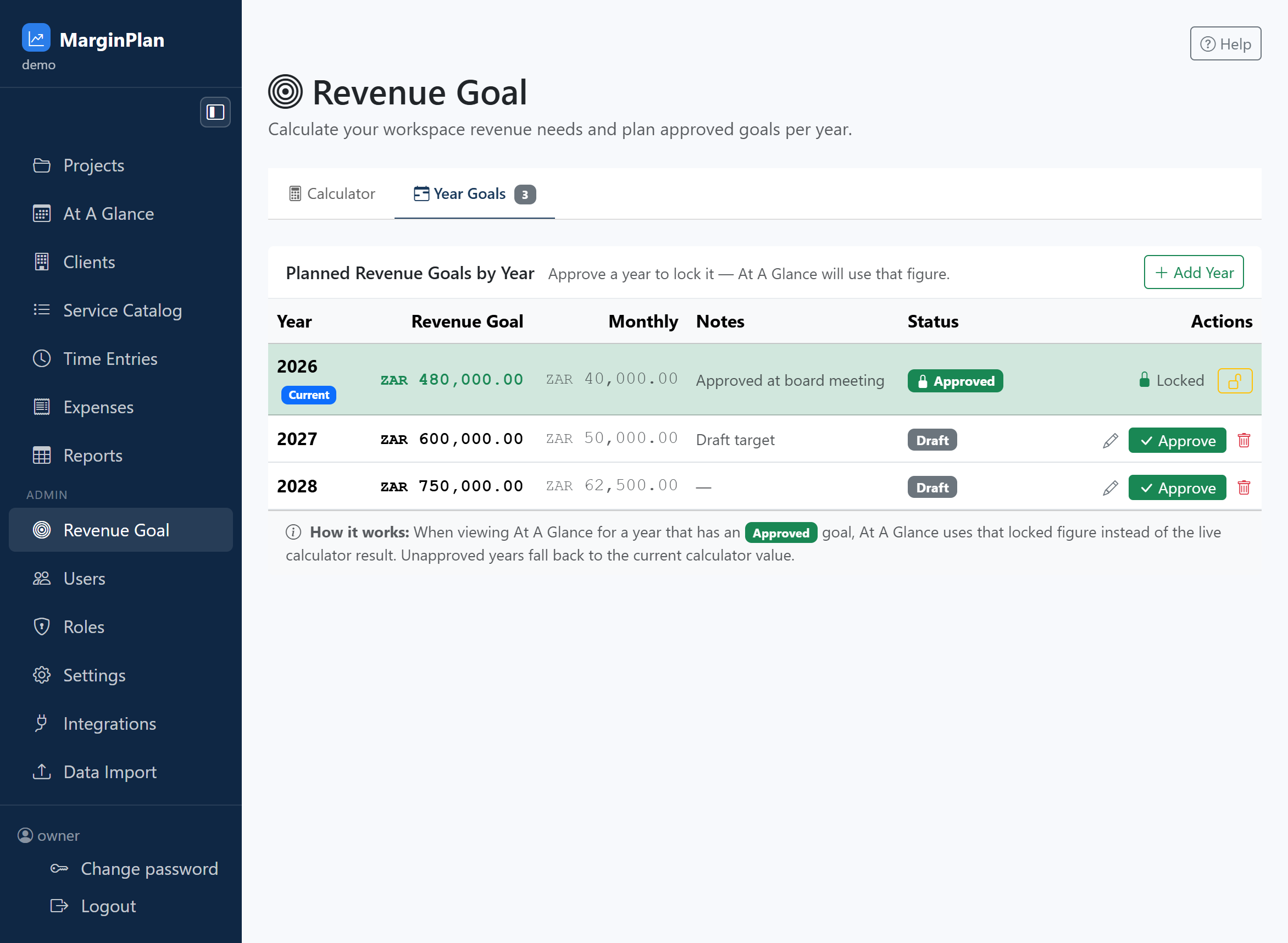
  5. Switch to Year Goals and compare proposed values against current approved records so planning changes are intentional rather than accidental drift.

    InteractionsTop-level Year Goals tab and Planned Revenue Goals by Year table.
    Switch to Year Goals and compare proposed values against current approved records so planning changes are intentional rather than accidental drift.
  6. When publishing a new year target, use the calculator suggestion link only after assumption quality checks are complete, then confirm notes explain the planning rationale.

    InteractionsYear Goals tab: Add Year form with Revenue Goal field and calculator-suggested amount link.
    When publishing a new year target, use the calculator suggestion link only after assumption quality checks are complete, then confirm notes explain the planning rationale.
    Open workflow: Year Goals Workflow
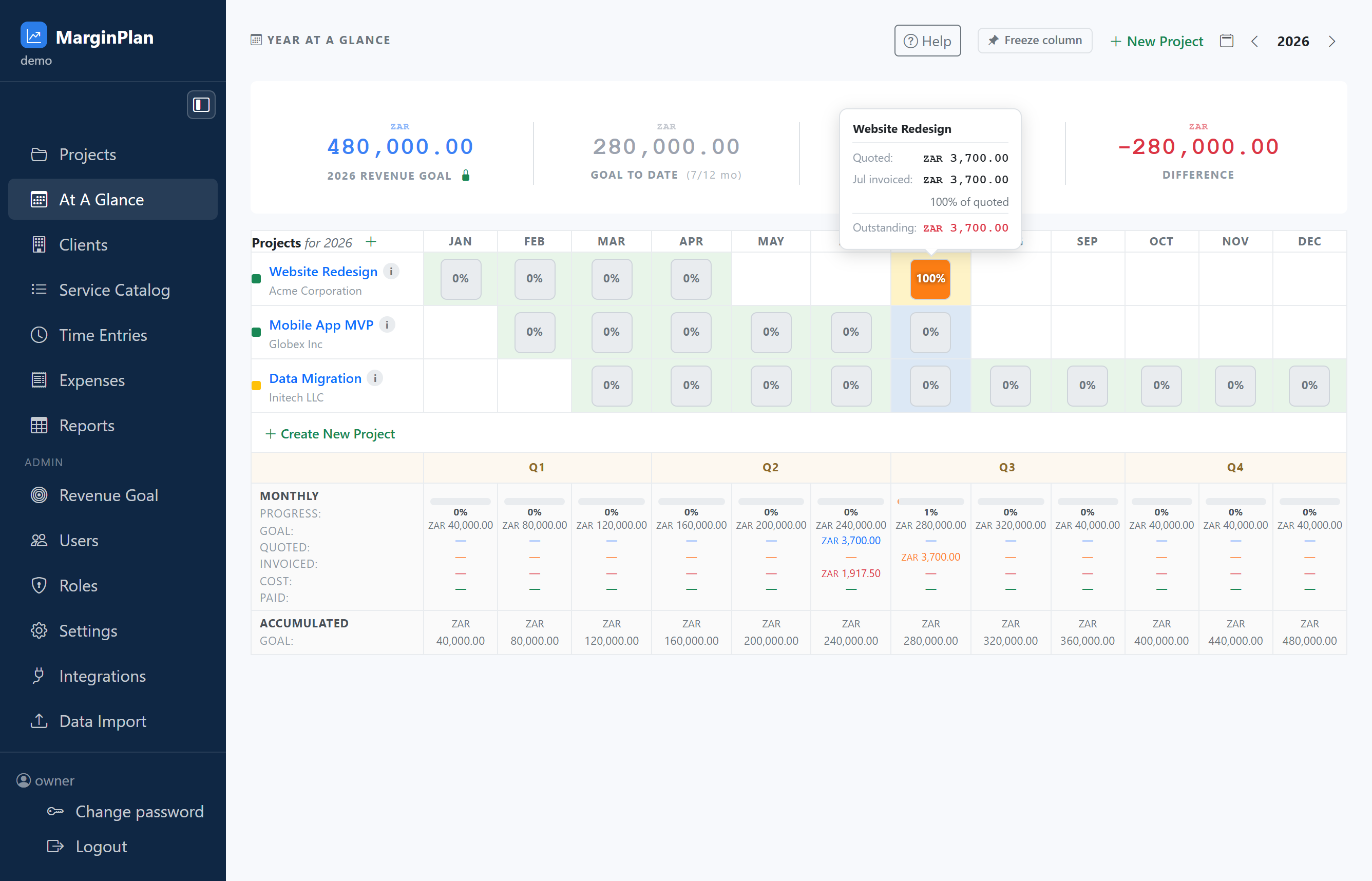
  7. After approval, verify downstream operating alignment by checking At A Glance and reporting views so monthly execution is judged against the right annual target.

    InteractionsFollow-on workflow: open At A Glance and Reports from the left navigation.
    After approval, verify downstream operating alignment by checking At A Glance and reporting views so monthly execution is judged against the right annual target.
    Open workflow: At A Glance

What to review

Top-level Calculator and Year Goals tabs

Separates modeling from approval. Calculator is where assumptions are tested; Year Goals is where planning figures are committed for operating visibility.

Summary bar (Business, Personal, Profit, Tax, Yearly Goal)

This five-part summary is the first model integrity check. Read it before editing line items so you know which component is driving revenue pressure.

Business Budget, Personal Budget, and Target Profit inner tabs

These tabs hold the assumptions that drive the model. Keep each section coherent so yearly output is not distorted by hidden category errors.

Category/target tables with inline edit actions

Item-level edit and delete controls let you correct assumptions quickly while preserving model structure transparency.

Calculation explanation panel

The formula block explains how tax and margin assumptions convert required outcome into required revenue. Use it to defend planning logic in reviews.

Year Goals approval table

Stores year-level goals used by downstream planning screens. Treat this as the published operating baseline rather than a temporary scratchpad.

See guide: At A Glance

Use calculator suggestion shortcut

The Year Goal amount helper pulls the current calculator result into a year goal entry so modeled output and approved value stay aligned.

Edit Annual Goal / Sales Target / Goal Item forms

Use focused edit forms for precise changes instead of broad manual rewrites in the main workflow.

See guide: Year Goals Workflow
Guardrails

  • Yearly Goal Total should be explainable from visible budget items, target profit assumptions, tax rate, and margin baseline.
  • Calculator and Year Goals values should not diverge without documented rationale in year-goal notes.
  • Approved year goals should be treated as locked planning baselines for downstream portfolio tracking.
  • Edits to one assumption category should trigger a full summary-bar sanity check before acceptance.
  • Tax and margin settings should be reviewed before concluding that revenue requirements changed due to market factors alone.
  • Revenue-goal edits should be limited to owners accountable for financial planning quality.
  • View-only stakeholders may need visibility to targets while edit rights remain constrained.
  • Year-goal approval and lock-state actions should be restricted to prevent informal target changes.

If it starts drifting

  • If required revenue spikes suddenly, verify tax rate and default margin settings before rewriting category values.
  • If yearly totals seem low, check whether personal budget or target profit assumptions were unintentionally reduced.
  • If Year Goals do not match calculator output, confirm whether an older approved goal is intentionally overriding current model output.
  • If you cannot edit a goal record, confirm approval/lock state and role permissions before assuming a defect.
  • If At A Glance pacing looks inconsistent with planning, validate the selected year and approved goal source first.