Detailed guide

Project Detail

The main operating page for one project, combining financial health, delivery tracking, commercial workflows, and team access in one view.

Project Detail is the control room for one job. Start here to understand the current financial position, inspect delivery activity, and decide which downstream workflow needs attention next.

Quick summary

  • Confirm client, dates, budget, and assigned people before trusting any of the project's financial numbers.
  • Read the revenue, cost, and expected outcome cards first so you can tell whether the issue is collection, delivery spend, or quoted margin.
  • Expand hours, work log, and expense sections before changing estimates, quotes, or invoices when the project looks unprofitable.
  • Update tasks when the team needs clearer billable or non-billable buckets for time capture.
  • Use Planning & Estimates when scope, effort mix, or target margin changed and the commercial plan needs to be recalculated.
  • Use Quotes and Invoices only after the estimate, time, and expense data are current enough to support downstream commercial records.
  • Maintain the Project Team so the correct people can log time against the project.

Put it into practice

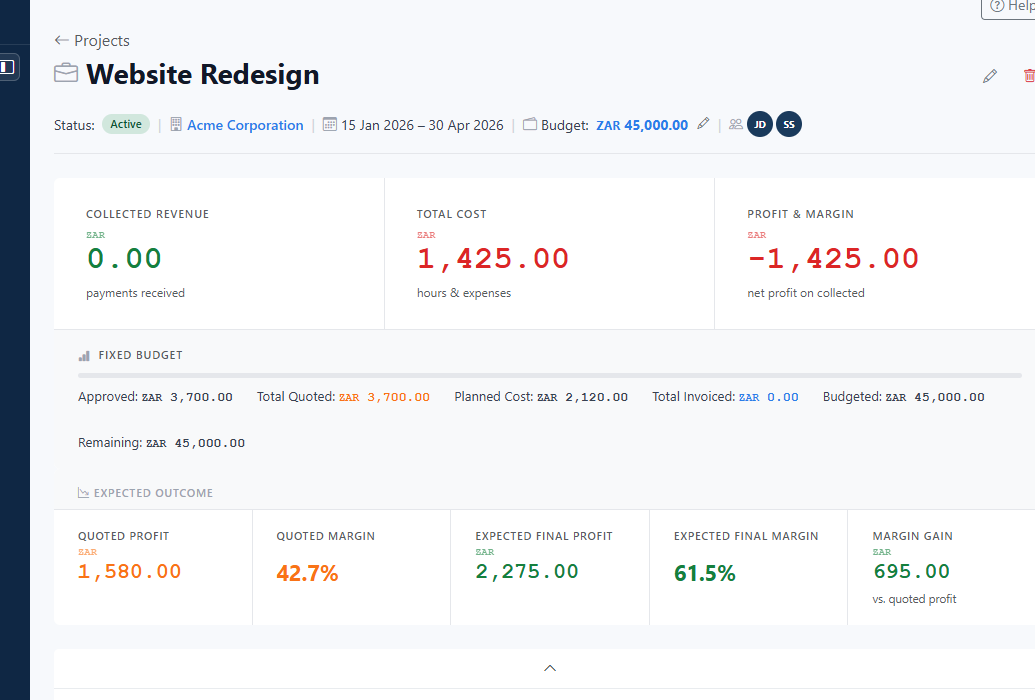
  1. Open the project and orient yourself before changing anything. Read the financial summary before touching downstream records. Collected Revenue, Total Cost, Profit & Margin, Fixed Budget, and Expected Outcome tell you whether the problem is cash collection, delivery cost, or margin leakage.

    InteractionsProjects List: click the project name. On Project Detail, use the top header row, client link, date range, budget control, and team avatars to verify context. Project Detail: review the summary cards, Fixed Budget strip, and Expected Outcome panel at the top of the page.
    Open the project and orient yourself before changing anything. Read the financial summary before touching downstream records. Collected Revenue, Total Cost, Profit & Margin, Fixed Budget, and Expected Outcome tell you whether the problem is cash collection, delivery cost, or margin leakage.
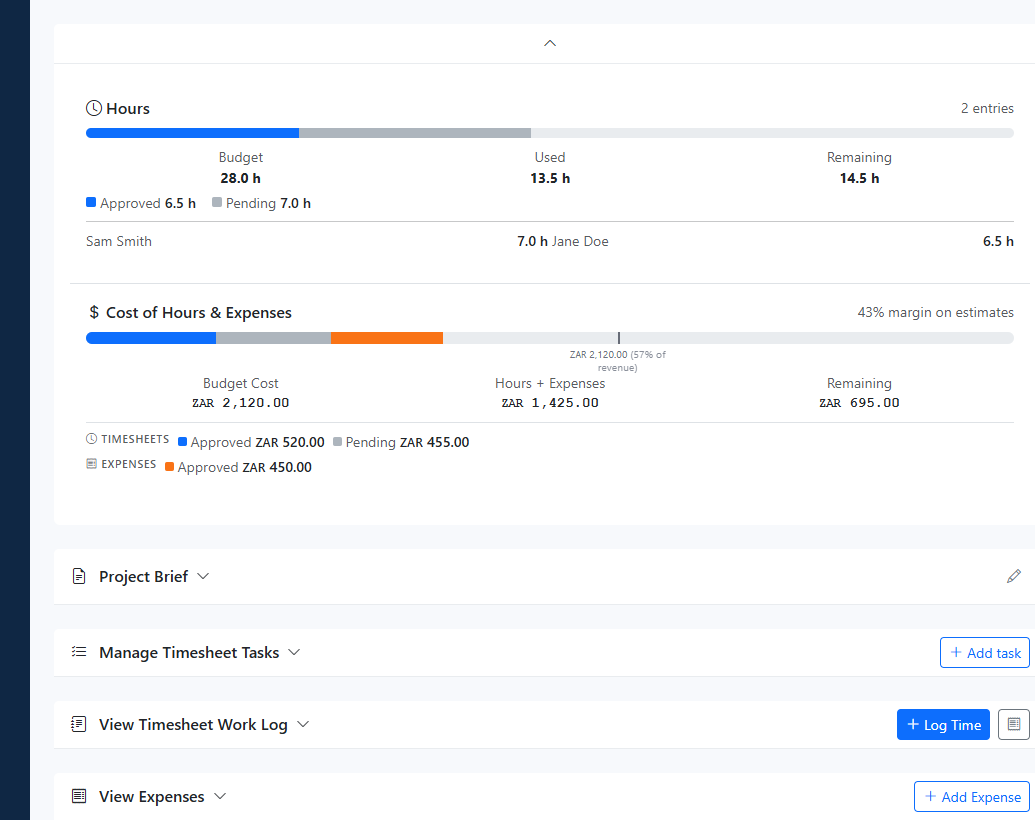
  2. Expand the progress area to compare budgeted effort and cost against actual delivery. Use Hours and Cost of Hours & Expenses to decide whether the project is overrunning because of time, expenses, or both.

    InteractionsProject Detail: open the central progress panel and inspect Hours plus Cost of Hours & Expenses.
    Expand the progress area to compare budgeted effort and cost against actual delivery. Use Hours and Cost of Hours & Expenses to decide whether the project is overrunning because of time, expenses, or both.
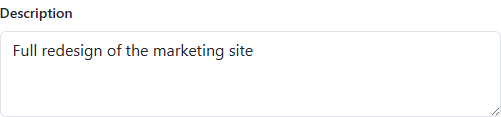
  3. Expand Project Brief when you need the written context for the job. Use it to confirm the delivery intent or update the brief if the project needs clearer scope notes.

    InteractionsProject Detail: click Project Brief to expand the collapsible section, then review or edit the brief content.
    Expand Project Brief when you need the written context for the job. Use it to confirm the delivery intent or update the brief if the project needs clearer scope notes.
  4. Edit the brief when the project description is outdated or missing important scope context. Use the small pencil on the right side of the Project Brief card to jump straight into the edit form for this project.

    InteractionsProject Detail: after expanding Project Brief, click the small pencil icon on the right side of that card to edit the brief.
    Edit the brief when the project description is outdated or missing important scope context. Use the small pencil on the right side of the Project Brief card to jump straight into the edit form for this project.
  5. Expand Manage Timesheet Tasks when time needs to be captured against better delivery buckets. Add a new task or edit an existing one so the team logs time against the right billable, non-billable, and quote-linked work item.

    InteractionsProject Detail: click Manage Timesheet Tasks to expand it, then use Add task or the task row edit action.
    Expand Manage Timesheet Tasks when time needs to be captured against better delivery buckets. Add a new task or edit an existing one so the team logs time against the right billable, non-billable, and quote-linked work item.
  6. Expand View Timesheet Work Log when effort looks wrong or missing. Use this section to log time, inspect recent project activity, and confirm whether hours explain the current cost and margin picture.

    InteractionsProject Detail: click View Timesheet Work Log to expand it, then use Log Time or the work log action button.
    Expand View Timesheet Work Log when effort looks wrong or missing. Use this section to log time, inspect recent project activity, and confirm whether hours explain the current cost and margin picture.
    Open workflow: Project Time Entries
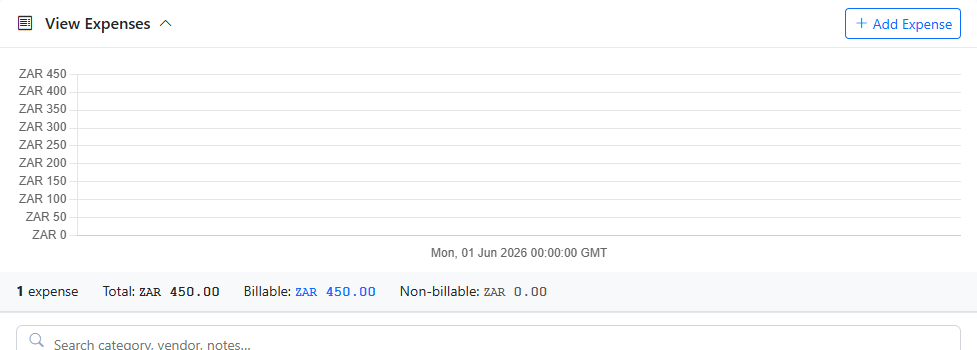
  7. Expand View Expenses before blaming estimates or invoices for a cost problem. Add missing expenses and review what has already been captured so the project's cost view reflects real non-labour spend.

    InteractionsProject Detail: click View Expenses to expand it, then use Add Expense or inspect the expense entries for this project.
    Expand View Expenses before blaming estimates or invoices for a cost problem. Add missing expenses and review what has already been captured so the project's cost view reflects real non-labour spend.
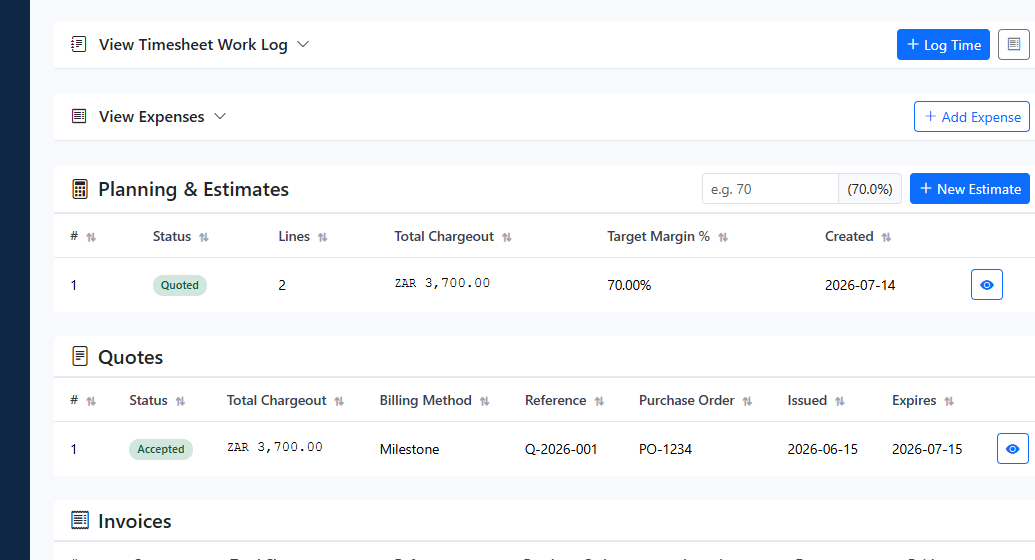
  8. Use Planning & Estimates when scope, resource mix, or target margin changed. Start a new estimate scenario or open the current estimate row to refine chargeout, budget hours, planned cost, and target margin assumptions.

    InteractionsProject Detail: in Planning & Estimates, use the target margin input, New Estimate button, and row view action.
    Use Planning & Estimates when scope, resource mix, or target margin changed. Start a new estimate scenario or open the current estimate row to refine chargeout, budget hours, planned cost, and target margin assumptions.
    Open workflow: Estimate Workflow
  9. Use Quotes when the estimate is commercially ready and you need the client-facing document reviewed, accepted, or updated. Quote records should reflect the current estimate rather than compensating for bad time or expense data upstream.

    InteractionsProject Detail: in the Quotes table, open the relevant row action for the quote you need to review.
    Use Quotes when the estimate is commercially ready and you need the client-facing document reviewed, accepted, or updated. Quote records should reflect the current estimate rather than compensating for bad time or expense data upstream.
    Open workflow: Quote Workflow
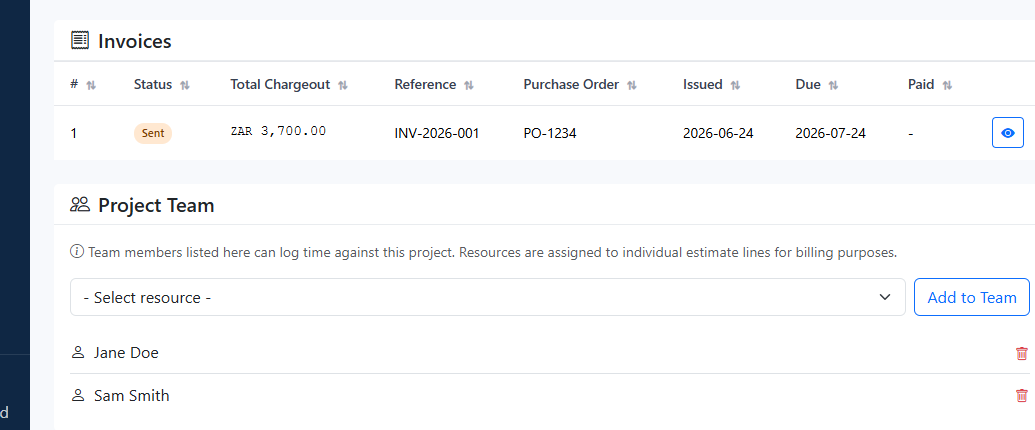
  10. Use Invoices only when the project is ready to bill. Check the invoice status, reference, purchase order, issued date, due date, and paid state after the estimate and quote path already reflects the correct commercial story.

    InteractionsProject Detail: in the Invoices table, open the relevant row action for the invoice you need to review.
    Use Invoices only when the project is ready to bill. Check the invoice status, reference, purchase order, issued date, due date, and paid state after the estimate and quote path already reflects the correct commercial story.
    Open workflow: Invoice Workflow
  11. Keep Project Team current so the correct people can log time against the project. Add missing contributors from the resource picker and remove people who should no longer book time here.

    InteractionsProject Detail: in the Project Team section at the bottom of the page, use Select resource and Add to Team, or remove an existing member.
    Keep Project Team current so the correct people can log time against the project. Add missing contributors from the resource picker and remove people who should no longer book time here.

What to review

Project header and quick actions

Shows the project name and the edit/delete controls, so you can confirm the record and jump into maintenance actions immediately when setup is wrong.

Status, client, dates, budget, and team strip

This top metadata row tells you whether you are on the right client and time period, shows the current budget, and exposes the Set Budget action and team avatars.

Revenue, cost, and profit summary cards

These cards are the first diagnostic checkpoint. Read them before editing anything else so you know whether the issue is unpaid revenue, delivery cost, or margin erosion.

Fixed Budget and Expected Outcome panels

Use these to compare quoted values, planned cost, invoiced value, remaining budget, expected final profit, and margin gain or leakage.

Progress detail panel

Expands to show hours used versus budget, resource effort split, and the combined cost of hours and expenses. Check this before changing estimates or invoices.

Project Brief panel

Stores the narrative context for the job. Use it when the team needs a clearer written summary of the scope or delivery intent.

Manage Timesheet Tasks panel

This is where you add or edit the tasks people book time against, including task type, linked quote lines, billable state, and active status.

View Timesheet Work Log panel

Use this panel when effort looks wrong. It is the fastest route to log missing time or open the project work log for a deeper inspection.

See guide: Project Time Entries

View Expenses panel

Use this panel to review or add project expenses before concluding that the estimate or invoice is the source of a cost issue.

Planning & Estimates section

Use this section to create or open the estimate that drives quoted value, budget hours, planned cost, and target margin for the project.

See guide: Estimate Workflow

Quotes section

Use this section when the estimate is ready to be presented as a client-facing commercial document and you need to review quote status, reference, PO, and expiry.

See guide: Quote Workflow

Invoices section

Use this section to move from approved commercial work into billing, then verify invoice status, reference, purchase order, issued date, due date, and paid state.

See guide: Invoice Workflow

Project Team section

Controls who can log time against the project and shows the current assigned people at the bottom of the page.

Set Budget modal

Use this when the client budget changes and the budget strip and remaining-budget numbers need to be updated to match the current commercial target.

Edit Task modal

Lets you correct task naming, linked quote lines, task type, and billable state without leaving the project detail page.
Guardrails

  • Budget changes should only be saved after confirming you are on the correct project, because they immediately change the budget strip and remaining-budget interpretation.
  • Task updates are only useful when the task name, linked quote lines, task type, and billable state match how the team should actually log work.
  • Treat estimates, quotes, and invoices as sequential handoffs: validate upstream assumptions before using downstream documents as the source of truth.
  • Users may be able to view Project Detail without being allowed to edit budget, delete the project, manage tasks, or maintain team membership.
  • Commercial actions for estimates, quotes, invoices, time entries, and expenses may each be role-gated even when the project page itself is visible.

If it starts drifting

  • If the page looks sparse, expand the collapsible sections first; Project Brief, tasks, work log, and expenses are not all open by default.
  • If margin or cost looks wrong, inspect work log and expenses before editing estimates, quotes, or invoices manually.
  • If quote or invoice sections are empty, confirm the project has progressed far enough upstream for those records to exist yet.
  • If someone cannot log time against the project, check the Project Team section before assuming the timesheet tool is broken.